
Video Reconstruction Capture
New feature in LCC Studio v2.0.0. Supports uploading video to automatically reconstruct a 3DGS model.
Applicable devices: Any phone or camera capable of recording video
Supported Video Specifications
| Item | Supported Range |
|---|---|
| File format | mp4, mov, webm |
| Video duration | Up to about 16 minutes (1000 seconds) |
| Video resolution | 720p – 4K (720px–3840px per side) |
| Video codec | H.264, H.265, AV1, VP9 |
Formats such as avi and mkv are not supported.
Sampling Frame Rate Selection
After uploading the video, LCC Studio automatically extracts frames. Selectable frame rates:
| Frame Rate | Applicable Scenario | Notes |
|---|---|---|
| 1 frame per second | Long videos (>250 s) | Fewer frames, faster processing |
| 2 frames per second | Medium videos (≤250 s) | Balances quality and speed |
| 4 frames per second | Short videos (≤250 s) | Richest detail |
Videos over 500 seconds can only choose 1fps; videos over 250 seconds cannot choose 4fps.
Core Principles of Video Shooting
The essence of video reconstruction is extracting multi-view images from video frames, so all general capture principles apply. Additional requirements:
| ✅ Recommended | Notes |
|---|---|
| Orbit shooting | Move slowly around the target, covering multiple angles |
| Slow movement | 0.5–1 m/s, avoid motion blur |
| Stay continuous | A single continuous video works best |
| Even lighting | Avoid drastic lighting changes |
| Lock focal length | Focal length must be fixed throughout, do not zoom |
| Lock exposure | Manual exposure mode, avoid auto-exposure jumps |
| ❌ Avoid | Notes |
|---|---|
| Fixed viewpoint | A purely static frame cannot be reconstructed |
| High-speed movement | >2 m/s causes blur or failure |
| Multi-clip stitching | Edited/stitched video can only reconstruct the continuous portion |
| Zooming | Focal length changes cause reconstruction failure |
| Pure rotation | Rotating the camera in place produces no parallax |
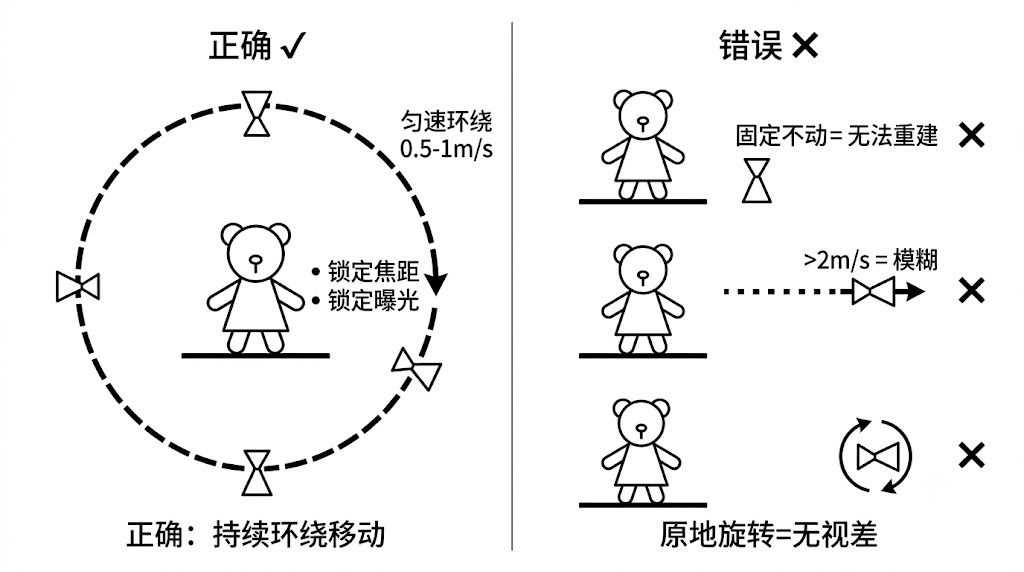
Correct video reconstruction shooting technique (orbit movement)
Video Shooting Strategies for Different Scenes
Object Video Shooting
- Low orbit once (20–30 s)
- Mid orbit once (20–30 s)
- High orbit once (20–30 s)
- Total duration: 60–120 s
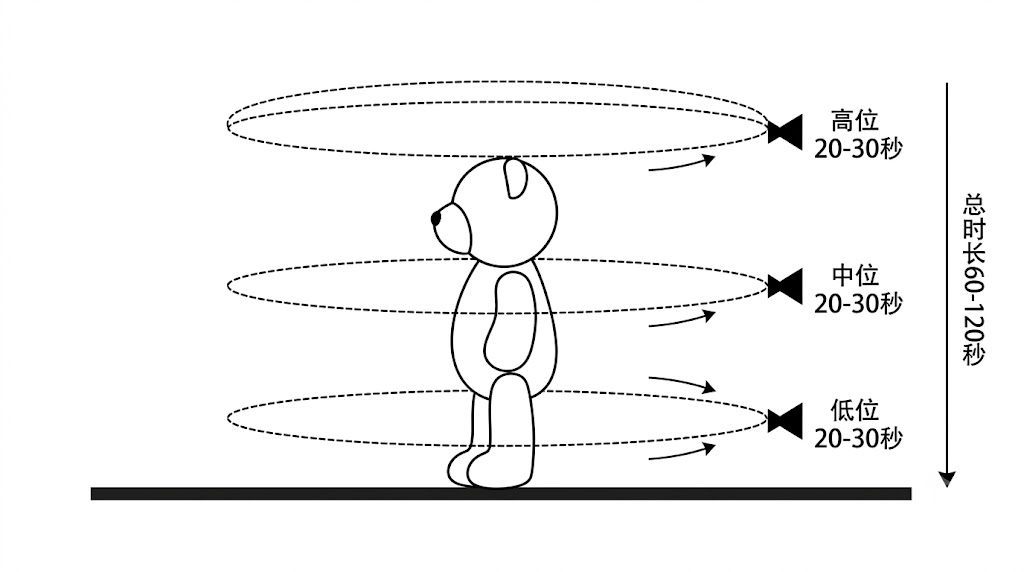
Object video shooting — three-layer orbit
People Video Shooting
- Tell the subject to stay still
- Quickly orbit 2–3 loops (different heights)
- Total duration: 60–90 s (limited time the subject can stay still)
Camera Setting Recommendations
| Parameter | Recommended Value | Notes |
|---|---|---|
| Resolution | 1080p or 4K | 4K has better detail but larger files |
| Frame rate | 30fps | Sufficient to extract clear frames |
| Shutter speed | ≥1/500s | Reduces motion blur |
| ISO | Adjust as needed | Prefer high ISO over a slow shutter |
| Focal length | 24–35mm equivalent | Wide angle provides more context |
| Focus | Manual focus or locked | Avoid focus hunting |
| Stabilization | Enable OIS/EIS | Reduces image shake |
Phone shooting tips: Lock exposure (long-press the screen), turn off HDR mode, use the main camera (avoid excessive ultra-wide distortion). Both landscape and portrait orientation are fine.
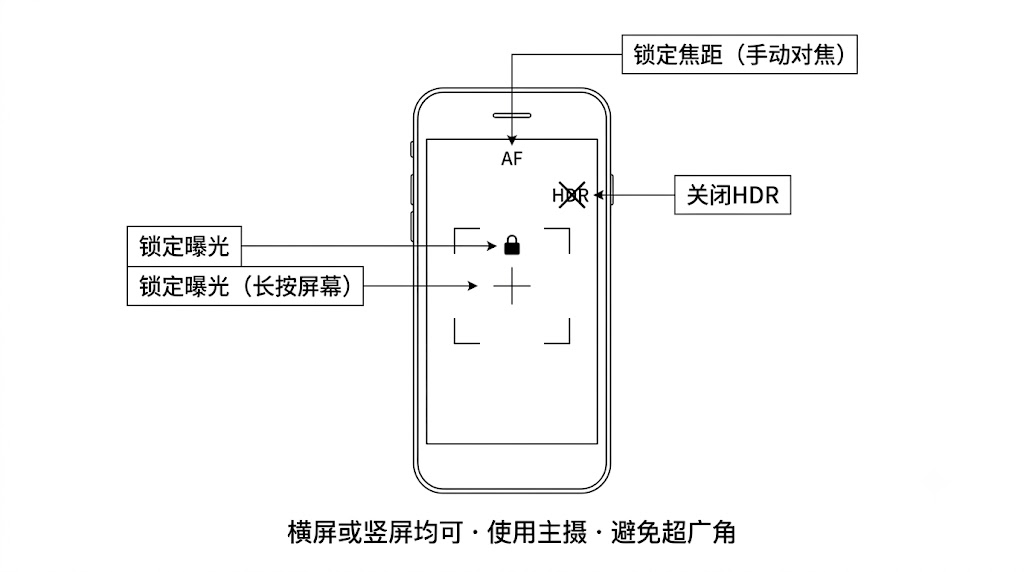
Phone shooting settings (lock exposure/focal length)
Video Reconstruction vs Device Scanning Comparison
| Dimension | Video Reconstruction | Device Scanning (K1/K2/L2 Pro/P1) |
|---|---|---|
| Device requirement | Any phone/camera | Dedicated scanning device |
| Applicable scenes | Objects, people, small scenes | Medium to large indoor/outdoor scenes |
| Accuracy | Medium | High (LiDAR-assisted) |
| Operation difficulty | Low | Medium |
| Maximum range | Small scenes (limited by 16 min) | Large scenes |
| Geographic coordinates | Not supported | Supported (RTK; not on the P series) |