
Per-camera Independent Rendering
By default, the render mode (RenderMode) and load mode (LoadMode) of an LCC Actor are the same for every view. You can override these settings for a specific player or a specific SceneCapture: for example, show 3DGS to player 1 and point cloud to player 2 in split screen; or have the SceneCapture used for a minimap render a top-down point cloud and load only the main part to lower the cost.
Both the LCC1 and LCC2 pipelines support this group of interfaces. For the signatures, see ULCCComponentBase - Multi-Viewport.
Runtime Only
The parameters of these functions are runtime objects (APlayerController / USceneCaptureComponent2D) that do not yet exist during the editor placement stage, so they are not panel properties and can only be called from Blueprint or C++ while the game runs. The RenderMode / LoadMode on the panel are the global defaults that apply to every view; this group of interfaces makes a local override on top of the global values, and a view that does not call an override function keeps using the global setting.
Note: it tells cameras apart by "view identity", using the unique ID of the render view for a player view and the index of its RenderTarget for a SceneCapture. That is why you must pass the
PlayerController(not the Pawn) — a Pawn carries no information about "which viewport it is displayed in".
Overriding Per Player (split screen / multiple local players)
// Player 2's viewport shows point cloud; other viewports are unaffected
LCCComponent->SetPlayerRenderMode(Player2Controller, ERenderMode::PointCloud);
LCCComponent->SetPlayerLoadMode(Player2Controller, ELoadMode::OnlyMain);
Text Blueprint:
[Custom Event: SetupSplitScreen]
        │
        ▼
[Get Player Controller]  Player Index = 1   → Player2Controller
        │
        ▼
[Set Player Render Mode]
        Target = (LCC Component)
        Player Controller = Player2Controller
        In Render Mode = Point Cloud
The setting takes effect on the next frame. Without calling an override function, all viewports share the global setting on the panel.
Overriding Per SceneCapture (minimap / surveillance view)
// The minimap uses point cloud + main only for the lowest cost
LCCComponent->SetSceneCaptureRenderMode(MinimapCapture, ERenderMode::PointCloud);
LCCComponent->SetSceneCaptureLoadMode(MinimapCapture, ELoadMode::OnlyMain);
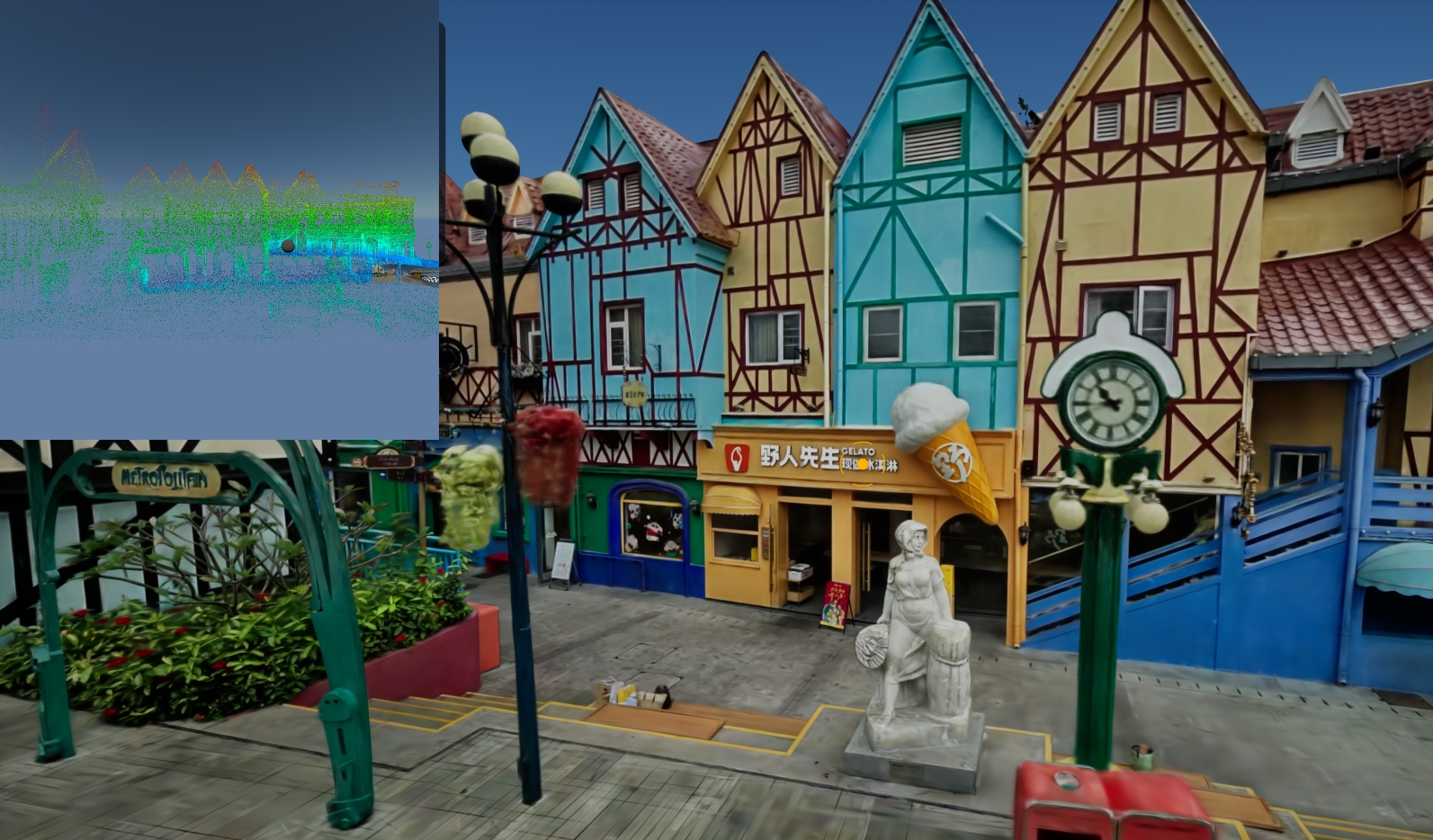
The main viewport shows 3DGS, while the SceneCapture minimap in the top-left corner uses a top-down point cloud
Prerequisite: to render LCC content in a SceneCapture, first enable SceneCaptureComponent Support in the project settings; it is disabled by default.
Mind the Call Timing (common pitfall)
A SceneCapture override only takes effect once it can compute a valid view ID. If the capture has not rendered once yet, there is no ID, and the setting is silently dropped (no error). Ensure the timing is correct with one of the two approaches below:
- Capture once, then set, then capture again:
Capture Scene→SetSceneCaptureRenderMode/LoadMode→Capture Scene. - Or tick
Capture Every Frameon the SceneCapture2D so the ViewState stays resident and the setting takes effect.
Also confirm the Texture Target of the SceneCapture2D is assigned; at an overly early moment such as BeginPlay, delay by a frame before calling.
Common mistake 1: calling
SetSceneCapture...beforeCapture Scenewhile the capture does not haveCapture Every Frameticked → the setting is lost and the image does not change.Common mistake 2: wiring
Targetto the SceneCapture2D. The correct wiring is Target = the LCC component being captured, and the SceneCapture2D goes into theIn Capture 2Dparameter.
Wait for Data Before Teleporting or Capturing
3DGS data streams in based on the camera view. When the camera jumps instantly (teleporting, switching shots) or a SceneCapture renders for the first time, the data for the current view has not arrived yet, and the image is incomplete. Query the load state of that view first, and show the image or take the capture only once it is Loaded.
| State | Meaning |
|---|---|
NotRendered | This model is not rendered in this view, so no data is loaded |
Loading | Data is still loading or updating; keep waiting |
Loaded | The data required by the current view is ready |
OverBudget | The required data exceeds the video memory budget (LCC2GPUMemoryBudget) and cannot all be loaded; waiting is pointless, so adjust the budget or the performance parameters |
InvalidData | The data cannot be read |
Unsupported | LCC1 data does not support the query |
There are two sets of query interfaces:
- A single model: GetPlayerViewLoadState / GetSceneCaptureViewLoadState on
ULCCComponentBase. - The whole world: the static functions of the same name on
ULCCUtilLibrary, which aggregate all LCC models and return the worst state. Use this set when the scene has multiple models.
Player View
Poll in Tick, and run the follow-up logic once the state becomes Loaded:
void AMyActor::Tick(float DeltaTime)
{
    Super::Tick(DeltaTime);

    if (bWaitingForData)
    {
        const ELCCViewLoadState State =
            ULCCUtilLibrary::GetPlayerViewLoadState(GetWorld()->GetFirstPlayerController());

        if (State == ELCCViewLoadState::Loaded)
        {
            bWaitingForData = false;
            // Fade in the image, start the capture, etc.
        }
    }
}
When used with ModifyPlayerTransform, the query returns the state at the target position, so you can start waiting before the teleport takes effect.
SceneCapture View
A SceneCapture without Capture Every Frame ticked only advances its state when it renders, so you need to capture manually. The loop: capture once, check the state on the next frame, and capture again if it is not ready, until it is Loaded:
[Capture Scene]
        │
        ▼
(next frame) [Get Scene Capture View Load State]
        │
        ├─ Loaded  ──▶ [Capture Scene] get the final image / export
        └─ Loading ──▶ back to the first step
Notes:
- A SceneCapture with
Capture Every Frameticked does not need manual captures; poll every Tick and take the image once it isLoaded. - The state can fall back. After
Loaded, camera movement or a settings change turns it intoLoadingagain. - In a continuously moving shot there is no need to poll every frame; use it only at moments that need a complete image, such as teleporting, switching shots, and capturing.