
Device Connection
This chapter covers connecting XGRIDS handheld scanners to the software and upgrading device firmware.
Switch to USB Mode
Connect an XGRIDS handheld scanning device.
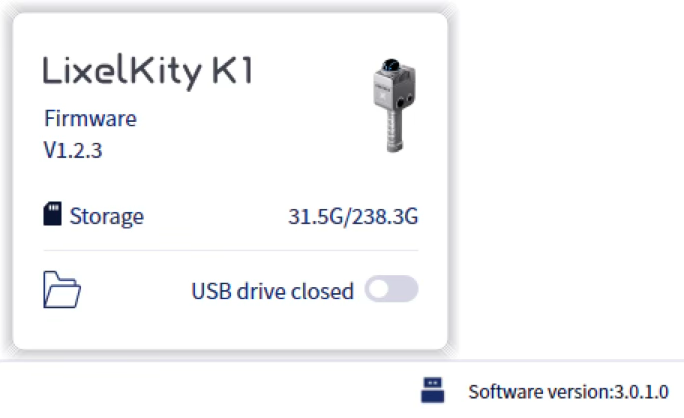
- Connect Device:
- Turn on the XGRIDS handheld scanner.
- Connect it to the computer via USB cable.
- Wait about 30 seconds until the USB button lights up.
- View Device Info:
- Click the USB button.
- View the current device firmware and storage capacity.
- Open USB Drive Mode:
- Click the USB Drive button in the lower-right corner.
- The device USB mode opens and the device data folder opens automatically.
Note: Each USB mode switch disconnects and reconnects the device. Wait a few seconds.
Device Firmware Upgrade
Upgrade the firmware for all XGRIDS handheld scanner series.
Requirements:
- The device is directly connected to the PC via USB.
- The device battery is above 60%.
Steps:
- Power on the device and connect it via USB.
- Click the Device button in the lower-right, then click Update.
- Click the field under Firmware Path and select the firmware file.
- Click Start. The installation takes about 30 minutes. The device switches USB mode on and off during installation; this is normal.
Important: Do not cancel the update or unplug the USB cable before the process completes.