XGRIDSDocs
  • 简体中文
  • English
  • 繁體中文
  • 日本語
  • Deutsch
  • Español
  • Italiano
  • 简体中文
  • English
  • 繁體中文
  • 日本語
  • Deutsch
  • Español
  • Italiano
  • PortalCam

    • Product Overview
    • Basic Operation
    • Using the LCC Scan App
    • Maintenance and Care
    • FAQ
  • Lixel K Series

    • Lixel K1

      • Product Overview
      • Basic Operation
      • Device Activation and Connection
      • Scanning Workflow
      • Acquire Point Cloud Data with Absolute Coordinate
      • Map Fusion
      • Route Planning Suggestions for Typical Scenes
      • Precautions
      • FAQ
    • Lixel K2

      • Product Overview
      • Basic Operation
      • Device Activation and Connection
      • Scanning Workflow
      • Acquire Point Cloud Data with Absolute Coordinate
      • Map Fusion
      • Route Planning Suggestions for Typical Scenes
      • Precautions
      • FAQ
  • Lixel L Series

    • Lixel L2 Pro

      • Product Overview
      • Basic Operation
      • Device Activation and Connection
      • Scanning Workflow
      • Acquire Point Cloud Data with Absolute Coordinate
      • Measure Point
      • Appendix
      • FAQ
  • Lixel Studio

    • Version and Copyright
    • Installation and Activation
    • Software Interface
    • File Operations
    • Project Processing
    • Tools
    • 2D Drawing
    • Applications
    • Settings
    • Device Connection
    • FAQ
  • Lixel CyberColor

    • LCC Studio

      • Getting Started
      • Version and Updates
      • Download and Installation
      • Interface Overview and Navigation
      • Before Reconstruction
      • Model Reconstruction
      • Single Model Reconstruction
      • Map Fusion
      • Aerial-Ground Fusion
      • Aerial Reconstruction
      • My Models
      • Other Features
      • Settings and Account
      • Converter
      • Video Reconstruction
      • FAQ
    • LCC Scene Editor

      • Version & Updates
      • Account & Login
      • Product Overview & Home
      • Editor Interface
      • Scene Navigation Modes
      • File
      • Settings
      • Edit Operations
      • Window
      • Global Toolbar
      • Assets & Properties
      • Left Toolbar
      • Viewpoints
      • Portal
      • Skybox
      • Annotations
      • Measurement
      • Flythrough
      • Scene Report
      • 3D Layout
      • Mini-Map
      • Preview Mode (Viewer)
      • Help
      • FAQ
      • Spawn Point
    • LCC Model Editor

      • Version and Updates
      • User Guide
      • Overview and Interface
      • File Operations
      • Selectors
      • Editing Models
      • Measurement
      • Color Grading
      • Asset Management
      • Settings and Help
      • FAQ
    • Capture Guide

      • Overview
      • Capture Devices Overview
      • General Capture Principles
      • Indoor Scene Capture
      • Outdoor Scene Capture
      • Large-Scale Capture (Map Fusion)
      • Aerial-Ground Map Fusion Capture
      • Object Capture
      • People Capture
      • Video Reconstruction Capture
      • HD Enhancement
      • Control Points (Lixel P1)
      • FAQ and Troubleshooting
    • Version History

Interface Overview and Navigation
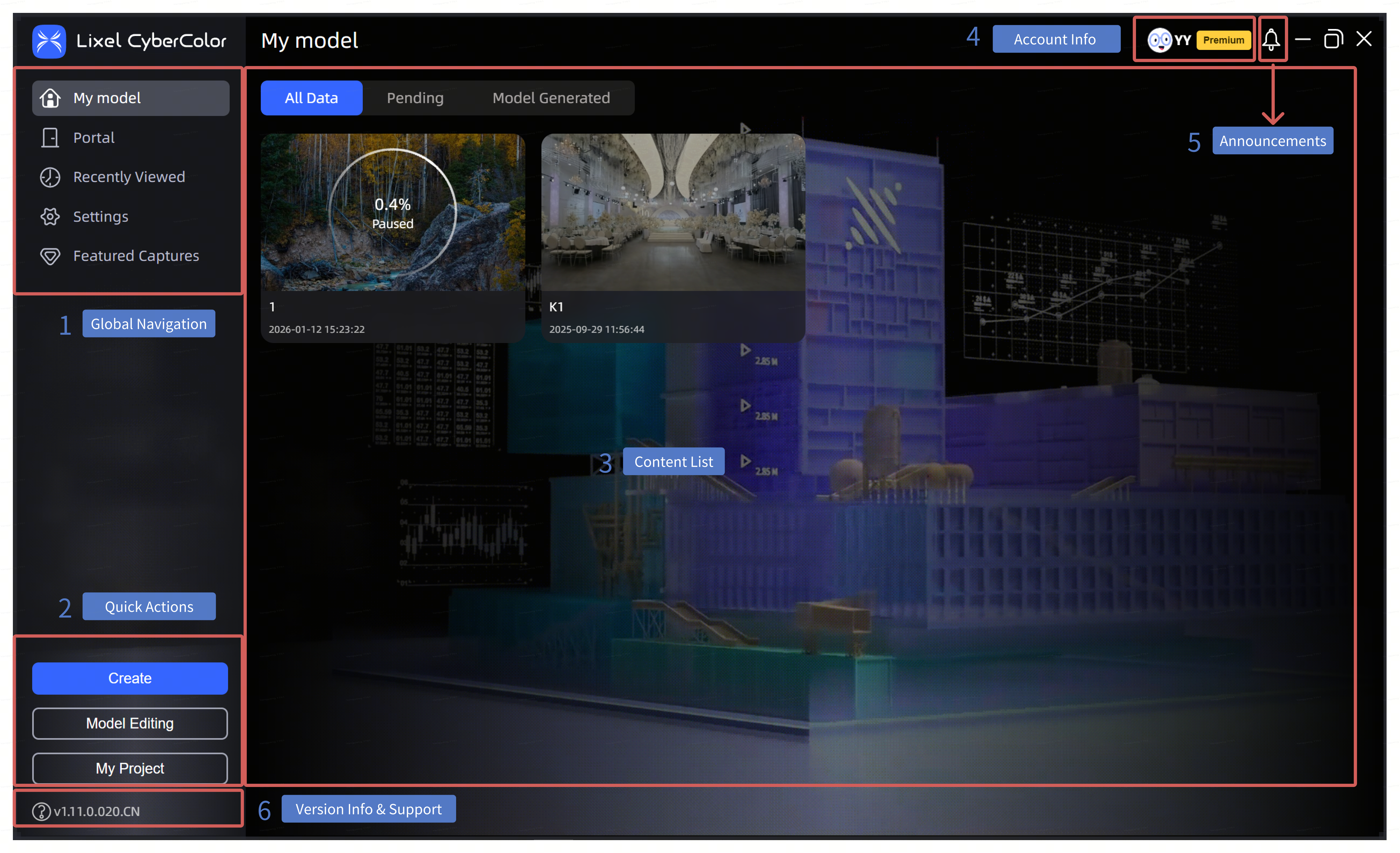
Interface overview

Interface overview

Global Navigation Area

  • My Models: View and manage your models. In the content list area, models awaiting reconstruction and generated models are displayed as model cards.
  • Teleport Scenes: View and manage historical "Teleport Scenes" data. Starting with version 1.12.0, the Teleport Scenes entry is only used to view historical content; creating or importing models on this page is no longer supported. To create or maintain multiple scenes and teleport relationships, open My Projects in Studio and use the Project workflow to complete scene editing and publishing in Editor.
  • Recently Viewed: Records all locally reconstructed models that you have viewed in the software, distinguishing between .lcc and .ply model formats.
  • Settings: Lets you view and configure the following: Account, Advanced, General, Device, Language, Data & Privacy, and About.
  • Featured Gallery: View model examples curated by the LCC team.

Quick Actions Area

Here, you can quickly generate and edit models.

  • Create: Click the Create button to begin the LCC model reconstruction workflow.
  • Model Editing: Import exported .lcc model files and .ply files into Studio for model editing.
  • My Projects: Enter LCC Scene Editor for project management and processing.

Content List Area

Displays the primary collection of content for the currently selected module.

Account Information

Displays the currently signed-in account and permission information, including subscription status, access to Settings, a field to redeem authorization codes, and Sign Out.

Announcements

Important notices and system answers: through Announcements, we provide the latest important information about LCC, including software updates, feature changes, and systematic answers to common questions. This helps you stay informed about the latest developments and provides timely assistance and guidance.

Version Information and Help

  • Software Version Information: The lower-left corner of the interface displays the version of LCC Studio currently in use. This helps you identify your software version and provide an accurate version reference when technical support is needed.
  • User Manual: Click the Help button to open the user manual for the current version. It provides detailed operating instructions and answers to common questions to help you quickly learn how to use the software.
Prev
Download and Installation
Next
Before Reconstruction