
Single Model Reconstruction
Workflow
Upload Capture Data
- Capture Data: Upload data files captured by XGRIDS scanning devices. The interface will display the corresponding device type.
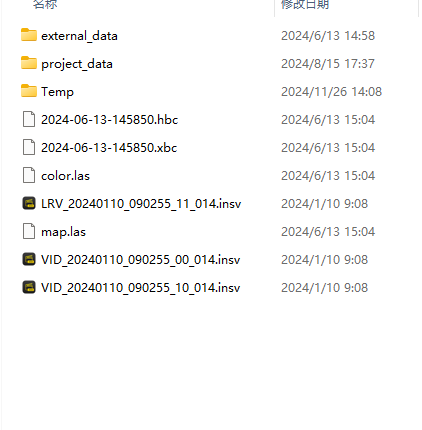
Capture data
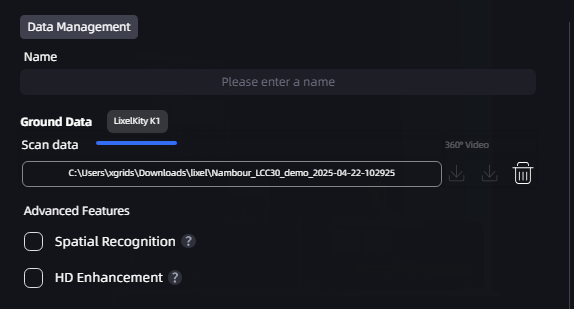
Display device type
Reconstruction Time Selection
For long, continuous capture data, you can select a specific time range beginning at the start of the capture and reconstruct only the data in that range as a single scene. Removing invalid or redundant capture segments lets you focus on the areas that matter while reducing reconstruction time.
Steps: After uploading capture data, enable "Reconstruction Time Selection," drag the timeline from the starting point to set the time range, and then confirm to reconstruct the selected data.
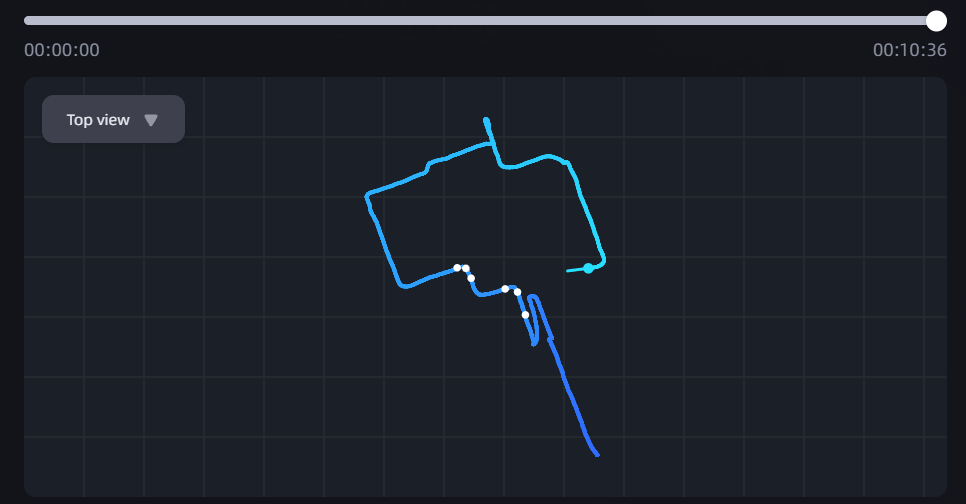
Reconstruction with time selection
Tip
Reconstruction Time Selection currently supports selecting a continuous time range beginning only at the capture start point, and is intended for single-scene reconstruction.
Enter the Model Name and Set Model Parameters
- Low-Memory Reconstruction: When device memory is insufficient, enable Low-Memory Reconstruction to write some intermediate data to disk rather than retaining it in memory, reducing peak memory usage. This mode may extend reconstruction time, but improves operational stability and reduces failures caused by insufficient memory.
Note: The Low-Memory Reconstruction option is available only in Single Model reconstruction mode.
Advanced Features
Intelligent Space Recognition
When reconstructing an indoor environment, you can enable Intelligent Space Recognition. The system automatically identifies structures such as walls, doors, and windows and organizes them into a clear, intelligent floor plan. This feature helps you understand a room's layout more quickly and is suitable for indoor spatial analysis, renovation planning, or BIM modeling preparation.
HD Supplementary Capture
During scanning, some key areas (such as landmark buildings, machinery, and decorative details) may require higher levels of detail and texture quality. In these cases, we recommend using HD Supplementary Capture to take additional photos of these areas with a high-definition device such as a mobile phone or DSLR camera. These high-definition photos can be combined with the original scan data to enhance detail and texture quality in key areas, producing a clearer reconstructed model.
Notes:
- Device performance: HD Supplementary Capture and Intelligent Space Recognition have certain computer performance requirements. GPU VRAM must be greater than 8 GB for normal operation. Insufficient GPU VRAM will prevent the features from being used.
- HD Supplementary Capture: Supplementary photos must all be captured with the same device; otherwise, recognition may be affected or fail. The number of supplementary photos must be between 20 and 500. Supported image formats are JPG, PNG, and JPEG.
- Supported number of supplementary photos:
- Lixel L series: 20–500 photos
- Lixel P series (Lixel P1): 20–1,000 photos with HD Supplementary Capture control points, with at least 20 photos uploaded for each control point; 20–500 photos without control points
Reconstruction Progress Display
After reconstruction begins, the model card in the My Models list displays reconstruction progress in real time:
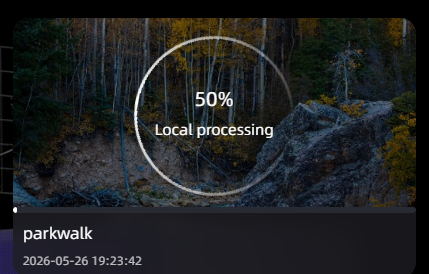
Reconstructing model card (overall ring progress + stage progress bar)
- Overall progress (ring): Displays overall reconstruction progress from 0% to 100%. Progress only increases.
- Stage progress bar: Displays detailed progress for the stage currently in progress at the bottom of the card.
- Status text: Displays the current status, such as "Reconstructing locally," "Paused," or "Task queued."
After reconstruction is complete, the card automatically switches to a model thumbnail.
Note: If you need to pause during reconstruction, click the pause button. The progress ring turns gray and displays the "Paused" label; when resumed, reconstruction continues from where it stopped.