
Converter
The Converter converts model data among LCC, LCC2, PLY, 3D Tiles, and USD formats, making it easier to deliver reconstruction results to downstream tools and platforms.
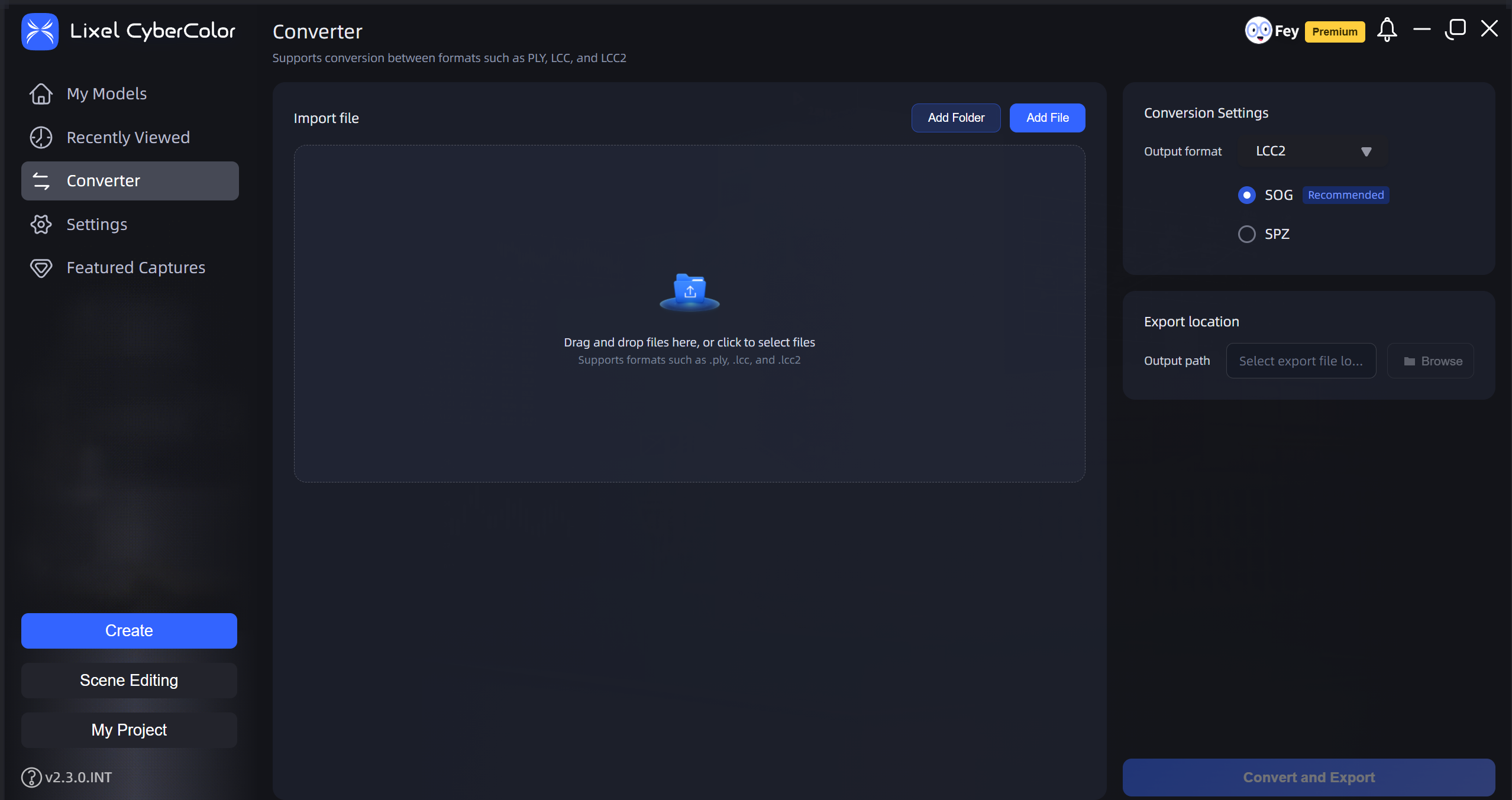
Converter
Overview
The Converter is a standalone feature that lets you convert 3DGS data between formats. While the Converter is in use, the Convert functions in the Reconstruction, Edit, and Publish modules are unavailable.
Supported Conversion Paths
| Input \ Output | LCC | LCC2 | PLY (XGRIDS-generated) | 3D Tiles | USD |
|---|---|---|---|---|---|
| LCC | × | √ | √ | √ (supports legacy and current data) | √ USD / USDZ |
| LCC2 | √ | √ | √ | √ (supports legacy and current data) | √ USD / USDZ |
| PLY (XGRIDS-generated) | √ | √ | × | √ (supports legacy and current data) | √ USD / USDZ |
| 3D Tiles | × | × | × | × | × |
| USD | × | × | × | × | × |
Note: Only the conversion paths marked with √ in the table are supported. You cannot convert a format to the same format. 3D Tiles and USD are supported only as output formats, not as conversion inputs. Third-party PLY files can be converted to LCC2 but not LCC. LCC2-to-LCC2 conversion supports only LCC2-SOG and LCC2-SPZ conversions.
Output Formats and Permissions
| License | Available output formats |
|---|---|
| Free | LCC and LCC2 (select SOG or SPZ in the interface) |
| Premium | All Free capabilities, plus PLY, 3D Tiles, USD, and USDZ output |
If the selected format is not included in your current license, the interface prompts you to upgrade.
Convert a Single Model
- Open Converter in LCC Studio.
- Select or drag and drop the LCC, LCC2, or PLY model file to convert.
- Select the target format under Output Format, then choose a save location.
- Click Start Conversion. When the task is complete, open the output folder to view the files.
Batch Conversion
- Select the parent folder that contains multiple model datasets.
- The Converter scans only the first-level contents of the parent folder. For PLY data without LoD levels, each recognized model becomes a separate conversion task. PLY data with LoD levels is converted and merged into one output file.
- Confirm the task list and target format, then click Start Conversion.
Batch conversion continues processing the remaining tasks when an individual task fails. When processing is complete, the results page shows successful, failed, and canceled tasks.
Usage Limits
- To convert to LCC, the PLY input must be an eligible model dataset generated by XGRIDS.
- USD, USDZ, and 3D Tiles are not supported as input formats.
- Conversion tasks cannot be paused or resumed, but you can cancel an in-progress task.
- If the save location already contains a result with the same name, the system automatically adds a sequence number instead of overwriting the existing file.
View Conversion Results
After conversion, each task creates a separate output folder in the selected save location. Select Open Folder to view the converted files. Canceling a task removes incomplete temporary files but retains completed results.
Common Questions
- Why can't I see an output format? Confirm that the input format supports the conversion path and that your current license includes the required permission.
- Why can't I add a PLY file? Confirm that it is an eligible model dataset generated by XGRIDS, rather than a standard point cloud or mesh file.
- Will a conversion failure affect other tasks? No. Batch conversion continues processing the remaining tasks and shows the reason for each failure on the results page.