
Product Overview and Home
Product Overview
LCC Scene Editor is a desktop application for editing and viewing 3DGS projects/scenes. It organizes work by "project," supports importing and managing project resources, and enables creating and maintaining editing data such as annotations, measurements, viewpoints, 3D layouts, and scene reports within 3D scenes. Results can be published to the online viewer for sharing and delivery.
Download and Installation
For details, please refer to Download and Installation.
Home
Double-click to open LCC Scene Editor, or navigate from LCC Studio → My Projects to enter the Editor home page.
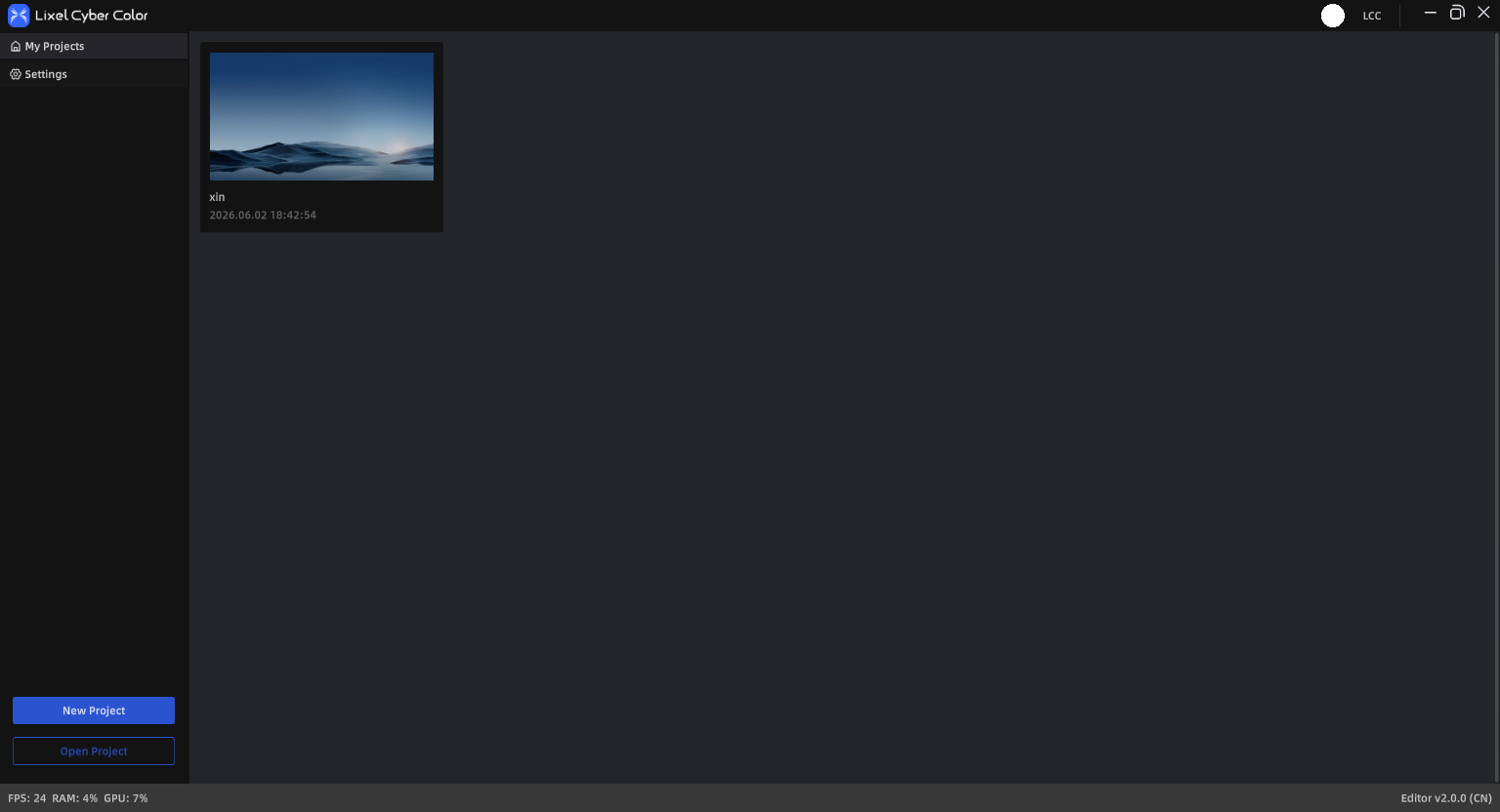
LCC Scene Editor Home
My Projects
My Projects provides centralized management of created projects, displayed as cards.
On project cards or in the list menu, you can perform the following operations:
General Operations:
- View: Open the project in Preview Mode
- Edit: Open the project in Edit Mode
- Rename: Modify the project name
- Open Folder Location: Open the project directory
- Delete: Delete the project and its folder contents
Unpublished Projects:
- Publish: Publish the project to the cloud, generating a Web Viewer link for sharing
Publish entry points:
- Quick publish button at the bottom-right of the project card, or More (top-right) → Publish
- Editor menu bar → File → Publish
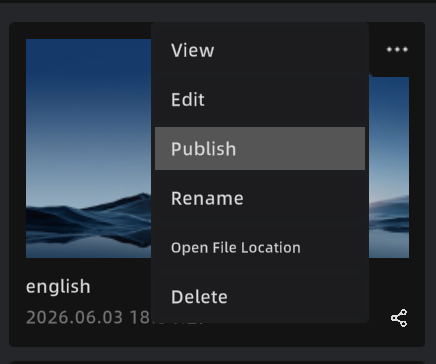
Publish entry on project page
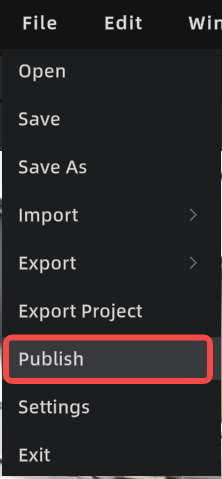
Publish entry in Editor
Published Projects:
- View Online: Open in Web Viewer
- Update Publish: Sync latest content to Web Viewer
- Publish Management: Manage published links and permission settings
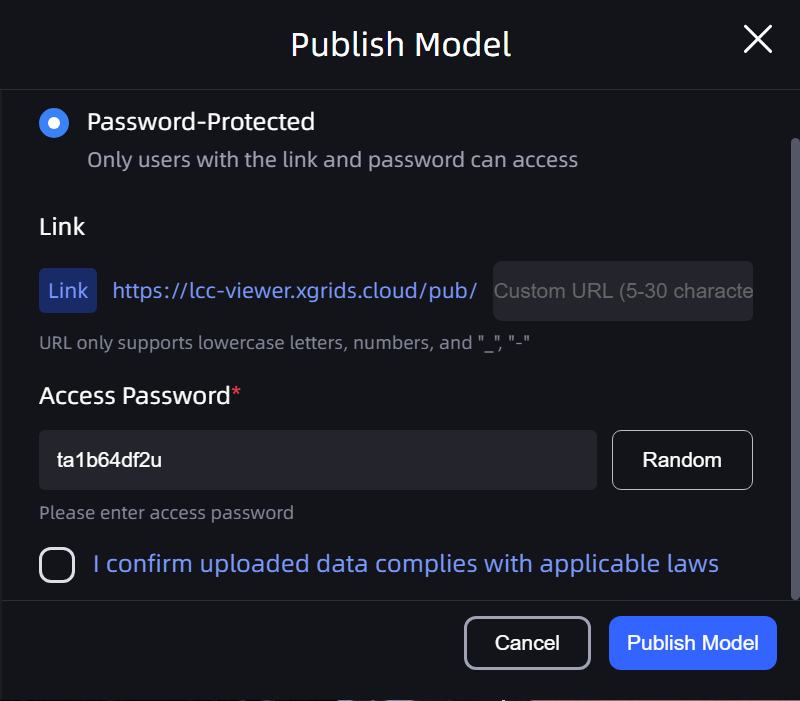
Publish
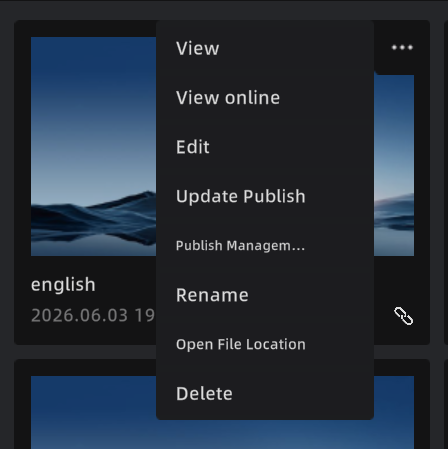
Published project
New Project
- Click "New project" on the home page
- Enter a project name (up to 60 characters; supports Chinese, letters, numbers, "_" and "-")
- Select a project storage path
- Confirm creation to enter the editing interface
Open Project/Model
- Open Project: Continue editing the project's models and editing data (annotations/measurements/viewpoints, etc.)
- Open Model File: Open a single model for viewing or temporary editing. For long-term maintenance, use "Save" to create a project.
Home Settings
The top-right corner of the home page provides the following settings:
- Language: Supports Chinese, English, Japanese, Traditional Chinese, Italian, German, and Spanish
- About: Get the latest version download link and usage tutorials; submit feedback to the LCC team
- Data & Privacy: View and manage data collection settings
Note: Language changes require restarting the application to take effect.