XGRIDSDocs
  • 简体中文
  • English
  • 繁體中文
  • 日本語
  • Deutsch
  • Español
  • Italiano
  • 简体中文
  • English
  • 繁體中文
  • 日本語
  • Deutsch
  • Español
  • Italiano
  • PortalCam

    • Product Overview
    • Basic Operation
    • Using the LCC Scan App
    • Maintenance and Care
    • FAQ
  • Lixel K Series

    • Lixel K1

      • Product Overview
      • Basic Operation
      • Device Activation and Connection
      • Scanning Workflow
      • Acquire Point Cloud Data with Absolute Coordinate
      • Map Fusion
      • Route Planning Suggestions for Typical Scenes
      • Precautions
      • FAQ
    • Lixel K2

      • Product Overview
      • Basic Operation
      • Device Activation and Connection
      • Scanning Workflow
      • Acquire Point Cloud Data with Absolute Coordinate
      • Map Fusion
      • Route Planning Suggestions for Typical Scenes
      • Precautions
      • FAQ
  • Lixel L Series

    • Lixel L2 Pro

      • Product Overview
      • Basic Operation
      • Device Activation and Connection
      • Scanning Workflow
      • Acquire Point Cloud Data with Absolute Coordinate
      • Measure Point
      • Appendix
      • FAQ
  • Lixel Studio

    • Version and Copyright
    • Installation and Activation
    • Software Interface
    • File Operations
    • Project Processing
    • Tools
    • 2D Drawing
    • Applications
    • Settings
    • Device Connection
    • FAQ
  • Lixel CyberColor

    • LCC Studio

      • Getting Started
      • Version and Updates
      • Download and Installation
      • Interface Overview and Navigation
      • Pre-Reconstruction Work
      • Model Reconstruction
      • Single Model Reconstruction
      • Map Fusion
      • Aerial-Ground Map Fusion
      • Aerial Reconstruction
      • My Models
      • Other Features
      • Settings and Account
      • Video Reconstruction
      • FAQ
    • LCC Scene Editor

      • Version and Updates
      • Account and Sign In
      • Product Overview and Home
      • Editor Interface
      • Three Navigation Modes
      • File
      • Settings
      • Edit
      • Window
      • Global Toolbar
      • Assets and Properties
      • Left Toolbar
      • Viewpoint
      • Skybox
      • Annotation
      • Measurement
      • Flythrough
      • Scene Report
      • 3D Layout
      • Preview Mode (Viewer)
      • Help
      • FAQ
    • LCC Model Editor

      • Version and Updates
      • User Guide
      • Overview and Interface
      • File Operations
      • Selectors
      • Editing Models
      • Measurement
      • Color Grading
      • Asset Management
      • Settings and Help
      • FAQ
    • Version History

Edit

Entry: Menu bar → Edit
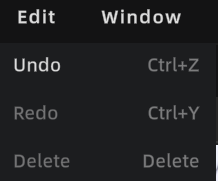
Edit menu

Edit menu

Undo

Operation: Press Ctrl + Z, or click the Undo button in the toolbar to revert the most recent operation.

Unified Undo/Redo mechanism with significantly expanded coverage:

Operation TypeUndo Supported
3D object transforms (Move/Rotate/Scale)✅
Viewpoint operations (Add/Move/Delete)✅
Annotation operations (Add/Move/Delete)✅
Skybox operations (Switch/Activate/Disable)✅
Measurement operations (Add/Delete)✅
Scene Report editing❌ Paused (button greyed out)
During video rendering❌ Paused (button greyed out)
In Preview Mode❌ Paused (button greyed out)

History limit: 100 steps. When exceeded, the earliest records are automatically discarded. Undo history is cleared when the project is closed.

3D Layout independent undo stack:

  • When entering the 3D Layout module, the system switches to an independent 2D undo stack
  • Operations performed in 3D Layout are undone with Ctrl+Z only within the 2D context
  • After exiting 3D Layout, the 2D undo stack is cleared and the 3D global undo stack resumes

Redo

Operation: Press Ctrl + Y, or click the Redo button in the toolbar to restore undone operations.

Note: After performing a new operation, the redo history is immediately cleared.

Delete

Press the Delete key to delete the currently selected object or element.

Prev
Settings
Next
Window