XGRIDSDocs
  • 简体中文
  • English
  • 繁體中文
  • 日本語
  • Deutsch
  • Español
  • Italiano
  • 简体中文
  • English
  • 繁體中文
  • 日本語
  • Deutsch
  • Español
  • Italiano
  • PortalCam

    • Product Overview
    • Basic Operation
    • Using the LCC Scan App
    • Maintenance and Care
    • FAQ
  • Lixel K Series

    • Lixel K1

      • Product Overview
      • Basic Operation
      • Device Activation and Connection
      • Scanning Workflow
      • Acquire Point Cloud Data with Absolute Coordinate
      • Map Fusion
      • Route Planning Suggestions for Typical Scenes
      • Precautions
      • FAQ
    • Lixel K2

      • Product Overview
      • Basic Operation
      • Device Activation and Connection
      • Scanning Workflow
      • Acquire Point Cloud Data with Absolute Coordinate
      • Map Fusion
      • Route Planning Suggestions for Typical Scenes
      • Precautions
      • FAQ
  • Lixel L Series

    • Lixel L2 Pro

      • Product Overview
      • Basic Operation
      • Device Activation and Connection
      • Scanning Workflow
      • Acquire Point Cloud Data with Absolute Coordinate
      • Measure Point
      • Appendix
      • FAQ
  • Lixel Studio

    • Version and Copyright
    • Installation and Activation
    • Software Interface
    • File Operations
    • Project Processing
    • Tools
    • 2D Drawing
    • Applications
    • Settings
    • Device Connection
    • FAQ
  • Lixel CyberColor

    • LCC Studio

      • Getting Started
      • Version and Updates
      • Download and Installation
      • Interface Overview and Navigation
      • Before Reconstruction
      • Model Reconstruction
      • Single Model Reconstruction
      • Map Fusion
      • Aerial-Ground Fusion
      • Aerial Reconstruction
      • My Models
      • Other Features
      • Settings and Account
      • Converter
      • Video Reconstruction
      • FAQ
    • LCC Scene Editor

      • Version & Updates
      • Account & Login
      • Product Overview & Home
      • Editor Interface
      • Scene Navigation Modes
      • File
      • Settings
      • Edit Operations
      • Window
      • Global Toolbar
      • Assets & Properties
      • Left Toolbar
      • Viewpoints
      • Portal
      • Skybox
      • Annotations
      • Measurement
      • Flythrough
      • Scene Report
      • 3D Layout
      • Mini-Map
      • Preview Mode (Viewer)
      • Help
      • FAQ
      • Spawn Point
    • LCC Model Editor

      • Version and Updates
      • User Guide
      • Overview and Interface
      • File Operations
      • Selectors
      • Editing Models
      • Measurement
      • Color Grading
      • Asset Management
      • Settings and Help
      • FAQ
    • Capture Guide

      • Overview
      • Capture Devices Overview
      • General Capture Principles
      • Indoor Scene Capture
      • Outdoor Scene Capture
      • Large-Scale Capture (Map Fusion)
      • Aerial-Ground Map Fusion Capture
      • Object Capture
      • People Capture
      • Video Reconstruction Capture
      • HD Enhancement
      • Control Points (Lixel P1)
      • FAQ and Troubleshooting
    • Version History

Scene Navigation Modes

LCC Scene Editor provides three navigation modes: First-Person, Pivot, and Avatar. Click the View Mode button to switch between them.

  • In Edit Mode, you can switch between First-Person and Pivot modes
  • In Preview Mode, you can switch between First-Person, Pivot, and Avatar modes
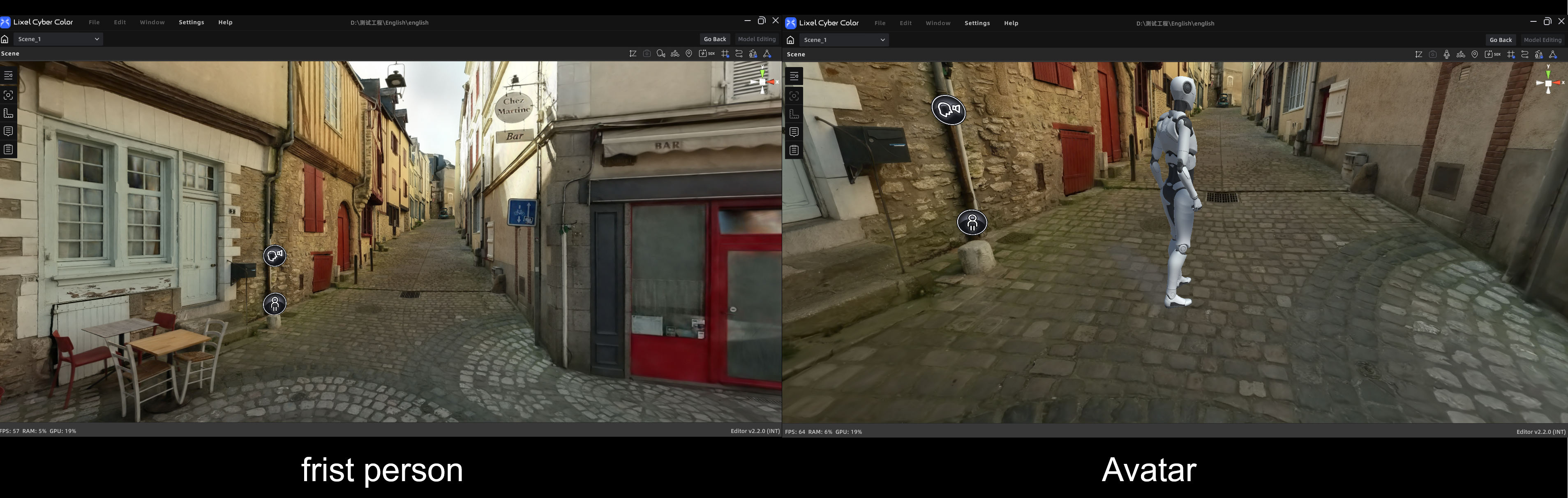
First-Person and Avatar Modes

First-Person Mode (left) and Avatar Mode (right)

First-Person Mode

Navigate the space from a first-person perspective, simulating an "eyes-on" experience. Ideal for immersive browsing of indoor spaces or detailed areas.

InputAction
W / A / S / D / Q / EMove Forward / Left / Backward / Right / Down / Up
ShiftSpeed boost
Mouse wheelAdjust movement speed
Left mouse dragRotate camera
Right mouse dragPan camera

Pivot Mode

In Pivot Mode, the camera orbits around a fixed "pivot point" in the scene. Best for viewing the model from a global perspective.

Because panning the camera also shifts the pivot point, switching suddenly from First-Person to Pivot Mode can cause the center to drift and rotation to appear erratic. The Spawn Point function serves as a "Reset Center" — click it to instantly recalibrate the camera position and restore the model center.

InputAction
Mouse wheelZoom
Left mouse dragOrbit around the pivot point
Right mouse dragPan camera
Double-click a pointQuickly set a new pivot center

Avatar Mode (Preview Mode only)

Avatar Mode lets a virtual character walk through the scene. Only immersive navigation is supported — measurement and annotation features are not available in this mode.

InputAction
W / A / S / DMove Forward / Left / Backward / Right
SpaceJump
ShiftSpeed boost
Left mouse click on targetClick-to-navigate (auto-walk)
Left mouse dragRotate camera
Prev
Editor Interface
Next
File