
Editor Interface
Panels can be freely dragged, docked, and floated. You can customize the layout to suit your workflow.
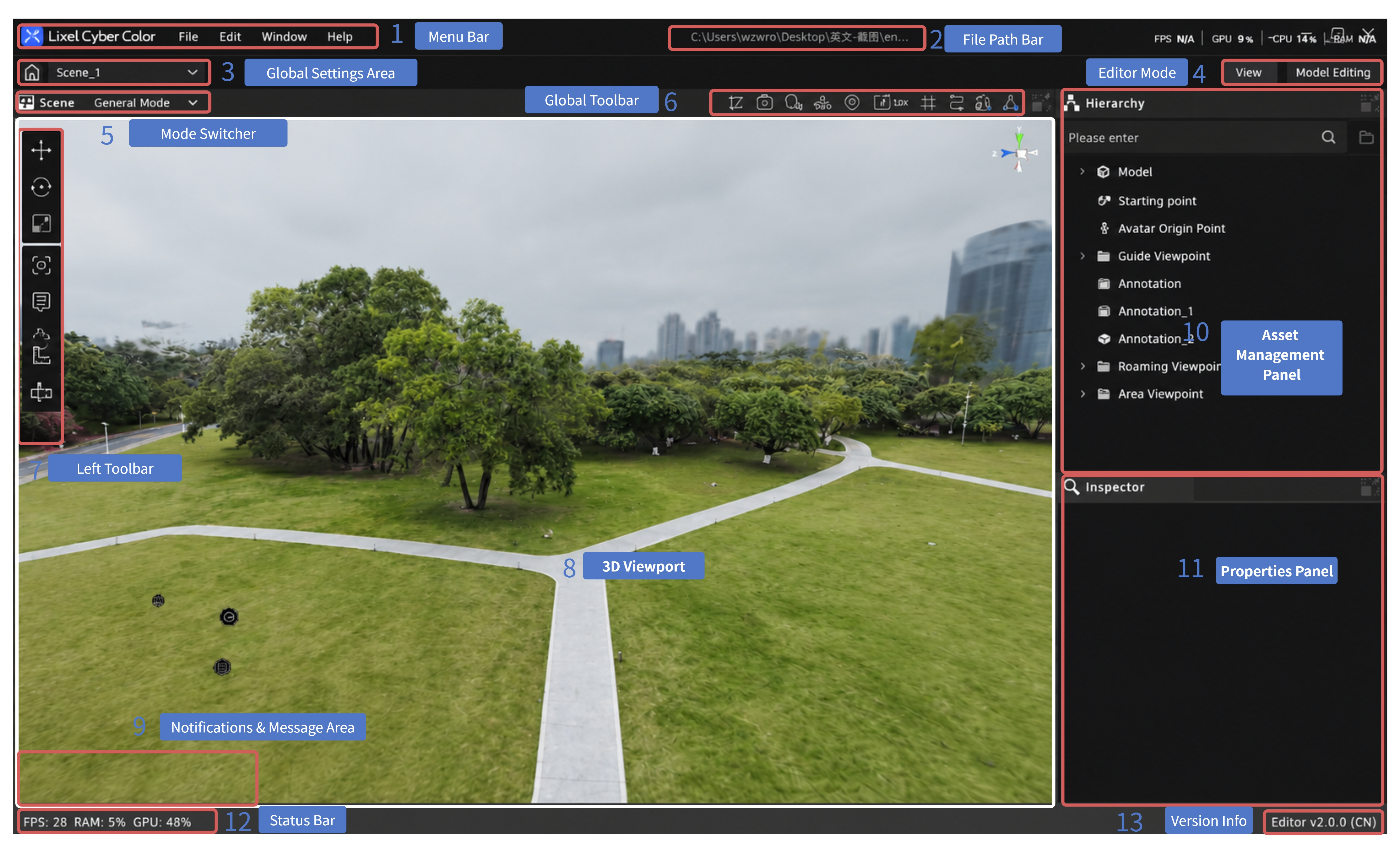
LCC Scene Editor Interface Layout
Default Layout:
- Menu Bar: File, Edit, Settings, Help
- File Path Bar: Displays and copies the file location
- Global Settings Area: Return to the home page and switch between scenes
- Edit Mode: Switch between Edit and Preview modes
- Left Toolbar: Asset transformation and feature tools
- View Toolbar: Shortcuts for undo/redo, scene display, navigation, screenshots, and more
- 3D Viewport: Scene editing and preview area
- Asset Management Panel: Manage assets in the current project, including multi-model spatial groups
- Properties Panel: Edit parameters for the selected asset
- Status Bar: Frame rate, memory usage, and other runtime information
- Version Information: Version number and region
Menu Bar
Located at the top-left of the interface, the menu bar provides access to the editor's main functions.
| Menu | Main functions |
|---|---|
| File | Create, open, and save projects; import models; and perform other file operations |
| Edit | Undo, redo, and perform other editing operations |
| Settings | Configure the language, rendering, controls, and other editor preferences |
| Help | View guides, keyboard shortcuts, and related help information |
File Path Bar
Located to the right of the menu bar, it displays the file path of the currently open project. Click the path to copy its location for easy access or sharing in your file manager.
Global Settings Area
Located on the left side of the top toolbar, it provides project- and scene-level shortcuts.
| Action | Description |
|---|---|
| Click the Home icon | Return to the home page (project list) |
| Open the scene dropdown | View and switch between scenes in the current project |
Edit Mode
Located in the top toolbar, it switches the current working mode.
| Mode | Description |
|---|---|
| Edit | The default mode. Adjust scene assets and use editing tools such as viewpoints, annotations, and measurements |
| Preview | Hide editing aids and preview how the published project will appear during navigation |
Left Toolbar
Located on the left side of the 3D viewport, it provides tools for transforming assets and editing scene content.
- Transformation tools: Move, rotate, and scale selected models or assets.
- Feature tools: Create and manage viewpoints, jump points, skyboxes, annotations, measurements, scene tours, scene reports, and smart floor plans.
For detailed instructions, see Left Toolbar.
View Toolbar
Located at the top-right of the 3D viewport, it provides shortcuts for scene display and commonly used functions, including undo/redo, colliders, environment data, capture trajectories, grid lines, camera speed, spawn points, point cloud display, view mode switching, screenshots, and height filtering.
Render quality options are located under Settings → Rendering. See Settings. For complete details about the view tools, see Global Toolbar.
3D Viewport
Located at the center of the interface, this is the primary area for editing and previewing scenes. Navigate and inspect the scene freely, or select assets and use the gizmo to move, rotate, or scale them. Selection, visibility, and navigation actions in the asset list are reflected in the 3D viewport.
Asset Management Panel
Located on the right side of the interface, it lists models, annotations, viewpoints, measurements, and other assets in the current scene. It supports search, selection and navigation, visibility controls, drag-and-drop sorting, grouping, and context-menu actions. In multi-model projects, spatial groups organize each model and its associated content.
For detailed instructions, see Assets & Properties.
Properties Panel
Located at the bottom-right of the interface. When you select an asset, this panel displays its editable parameters, such as name, position, rotation, scale, and feature-specific settings. Different asset types display different properties.
Status Bar
Located at the bottom of the interface, it displays the current frame rate, memory usage, and other runtime information to help you monitor editor performance in real time.
Version Information
Located at the bottom of the interface, it displays the current software version number and region. When reporting an issue, include this information to help identify the relevant version.