
Getting Started
Product Overview
LCC — Lixel CyberColor — is a real-world model rendering approach derived from 3DGS technology. It fuses LiDAR and visual data captured by XGRIDS devices to perform model reconstruction and rendering, generating highly detailed 3D models of real-world scenes. Because 3DGS-based technology offers superior generation efficiency and quality compared to mesh modeling and image-based modeling, it is currently very popular in the 3D industry and related upstream/downstream sectors both domestically and internationally.
Key advantages of LCC over similar technologies on the market:
- SLAM-based 3DGS enables mobile capture for larger real-world spaces with higher capture efficiency.
- LiDAR data acquired during capture also participates in computation, resulting in more structurally accurate models with better visual quality. This data enables measurement and other spatial computation-based overlay applications.
- Fast generation speed (5 minutes of data → currently 100–150 minutes of processing, ratio 1:20–1:30).
- Small data size (1/5 of comparable data types).
- High extensibility (supports measurement, annotation, editing, and further secondary development).
Lixel CyberColor Studio (hereinafter referred to as LCC Studio) is a 3D real-world modeling and rendering tool that runs on local PCs. It imports LiDAR and visual data captured by XGRIDS devices, automatically processes it to generate high-quality 3DGS model outputs, and supports management, editing, and publishing in .ply universal format or .lcc proprietary format. LCC Studio also provides rich visualization and analysis tools for local browsing or publishing as online links for sharing.
Core Features
- One-Click Generate: Import raw data captured by XGRIDS devices to automatically generate 3D model outputs in .lcc, .lcc2, .ply, .usd, or 3D Tiles format.
- Local Viewing & Flythrough: Local viewing and first-person Flythrough of LCC, LCC2, PLY, and USD models.
- Online Publishing: Publish model outputs as web viewing links with one click for remote sharing and presentation.
- Format Export: Export in .lcc, .ply, .lcc2, .usd, and 3D Tiles formats, compatible with various downstream processing workflows.
Practical Toolset
- Measurement & Annotation: Measure models and add annotations. Annotations support multimedia assets from inside or outside the scene.
- Model Post-Processing: Post-processing tools such as cropping and color adjustment.
- Asset Overlay: Import external 3D assets in .fbx, .glb, .obj, and other formats for model enhancement.
- Collision Experience: Generate models with physical collision for immersive Flythrough and interaction.
- Snapshot & Recording: Capture snapshots and render Flythrough videos to support presentations and reports.
- Viewpoints & Reports: Add viewpoints to guide users through specific areas, and generate scene reports for presentation and content summarization.
Featured Capabilities
- Map Fusion: Stitch multi-segment ground data through automatic overlap area recognition, enabling unified reconstruction of large-scale models.
- Aerial-Ground Map Fusion: Fuse drone imagery with ground scan data for seamless integration of aerial and ground perspectives, suitable for large-scale complex model reconstruction of building clusters, campuses, scenic areas, etc.
- HD Enhancement: Import high-definition images captured by DSLR cameras or smartphones to enhance detail restoration and texture quality in key areas.
- Spatial Recognition: For indoor scan data, automatically extract spatial structures and building components to quickly generate structured intelligent floor plans, suitable for spatial analysis and BIM modeling.
- Aerial Reconstruction: 3DGS reconstruction of ultra-large models using purely drone aerial photos, without ground device capture data.
First Use Guide
Download and Installation
Obtain the software installation package through the official download link: https://xgrids.com/intl/support/download
LCC Studio uses a .iso full installation package, supporting offline installation of all LCC functional modules.
Recommended Configuration
- CPU: Intel i9 12th Gen
- GPU: RTX 3070 or above
- RAM: 64GB or above
- For other configuration details, see Download and Installation - System Requirements - Configuration Reference
Registration and Authorization
- Free Version: Register and log in to use the free version features.
- Premium Version: After registering and logging in, contact sales to obtain an account authorization code; once the code is activated, the account enables premium features.
- Premium features include: All free version features, Map Fusion, Aerial Reconstruction, Aerial-Ground Map Fusion, HD Enhancement, Spatial Recognition, export to .lcc, .lcc2, .ply, .usd, 3D Tiles formats.
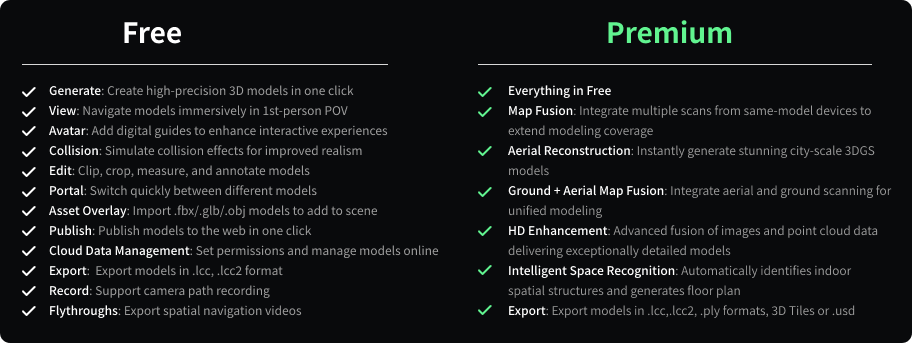
LCC Free and Premium
Data Capture
Before using LCC Studio for 3D spatial reconstruction, you must first use an XGRIDS device to perform a comprehensive spatial scan.
Note: Since LCC Studio features Map Fusion and Aerial-Ground Map Fusion capabilities, data capture has specific requirements. Strictly follow the capture guide during scanning to ensure data compliance. RTK data capture has additional details to note for scan data quality and applicability. Refer to the relevant capture guide and quick start guide for more detailed guidance.
- Capture Guide: LCC Capture Guide (PDF)
- LCC Quick Start Guide Video: https://xgrids.com/intl/support/tutorials?page=LCCStudio
Reconstruction
On the My Models page, click "Create", select the target generation type, upload capture data according to page requirements and parameters, then click Start to begin model reconstruction.
Note: Before starting reconstruction, set the project storage path and capture data backup path first. Keep the LCC data storage location separate from the software installation directory. Set the storage path on a solid-state drive (SSD) to significantly improve data generation and processing efficiency.
- Set LCC project path: Settings - General - Project Path - Select Directory
- Set capture data backup path: Settings - General - Capture Data Backup Path - Select Directory
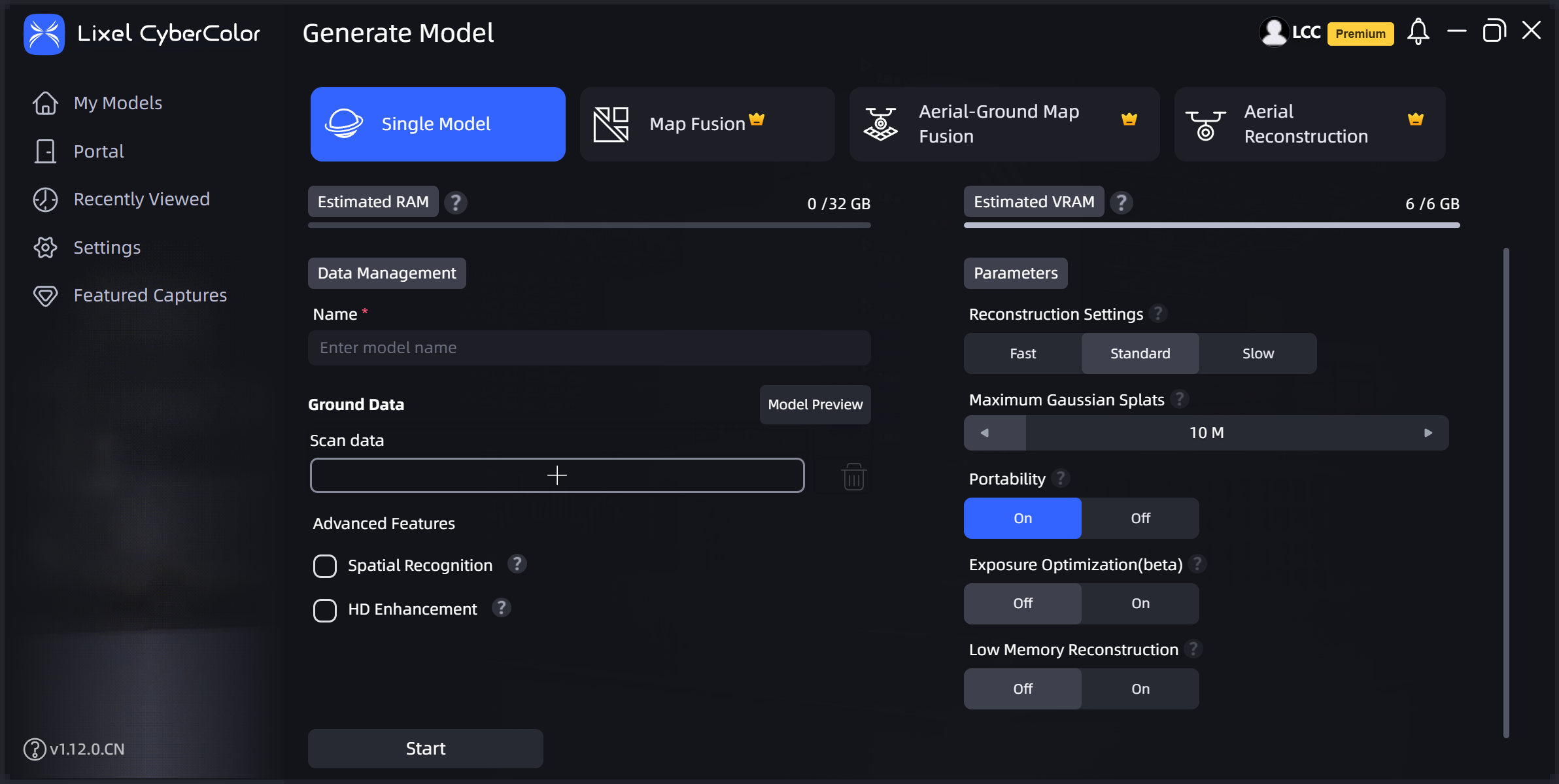
Create
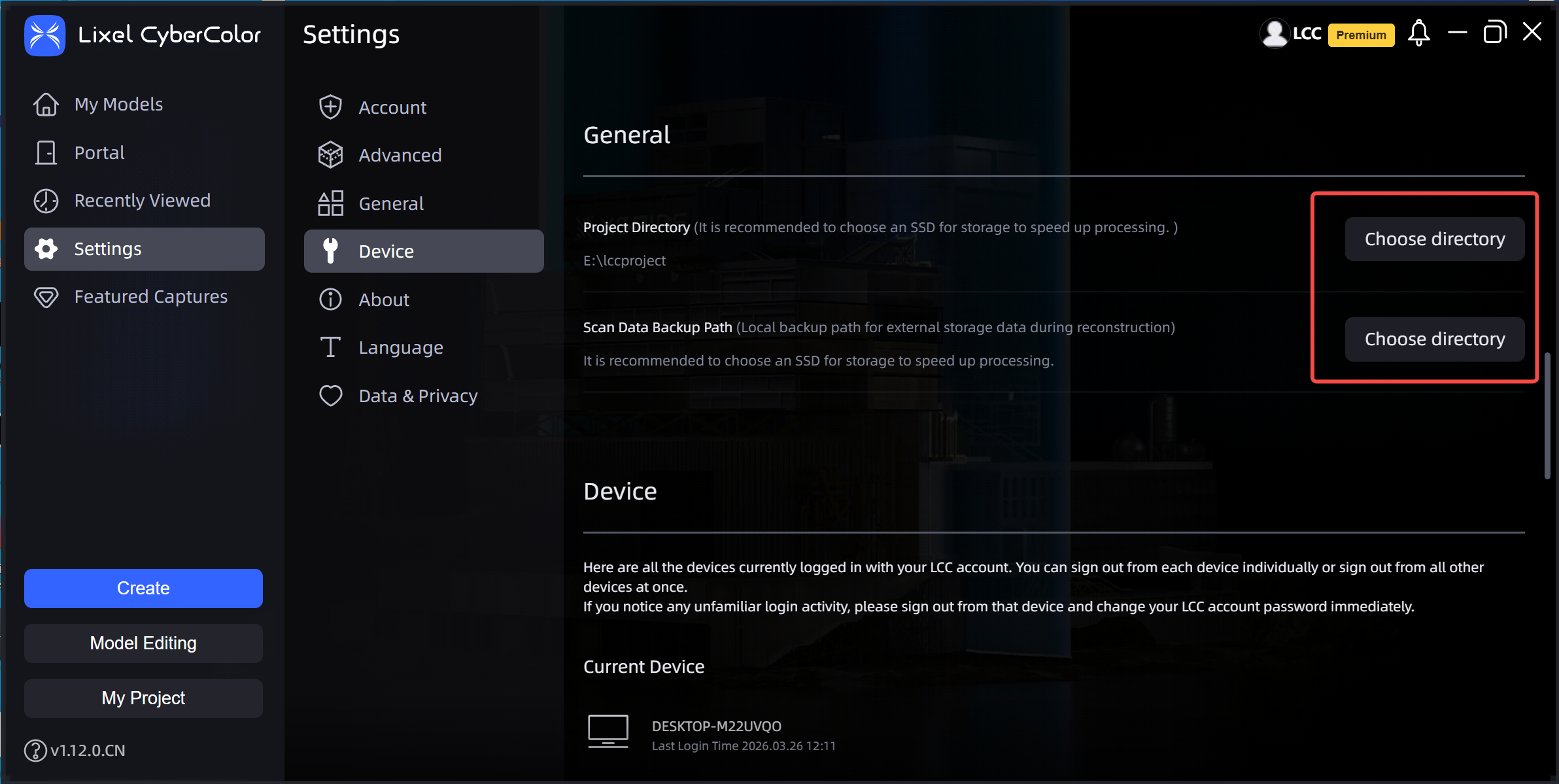
Set LCC project path
Export
Select a completed model card, click "..." in the upper right corner of the card, select Export, follow the popup instructions, choose the model format, and click Confirm to export.
Currently supported export formats: .lcc and .lcc2 data result files, .ply format data files, .usd format, and 3D Tiles format.
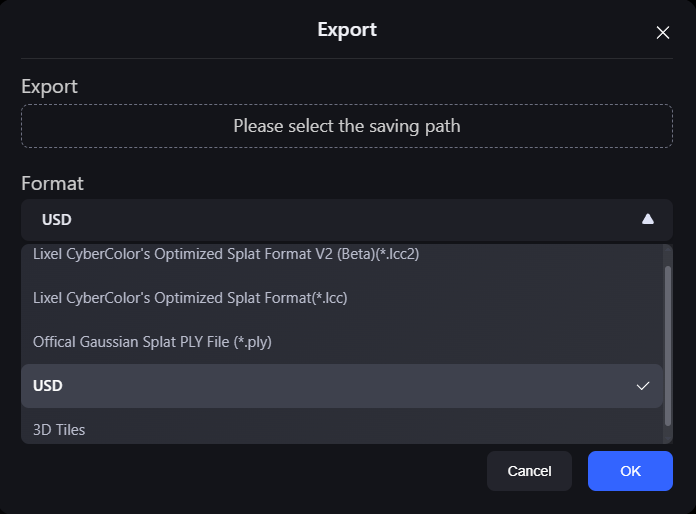
Export
Editing
After model reconstruction is complete, double-click the model card to enter LCC Scene Editor and begin editing or viewing the model.
Shortcut Keys for the Three Navigation Modes

Shortcuts
| Command | Function |
|---|---|
| First-Person Mode | |
| W / A / S / D / Q / E | Forward / Left / Backward / Right / Down / Up |
| Shift | Accelerate movement |
| Mouse Scroll Wheel | Adjust movement speed |
| Left Mouse Button Drag | Rotate view |
| Right Mouse Button Drag | Pan view |
| Avatar Mode | |
| Space | Jump |
| Left Click | Move to that location |
Click the tools in the left toolbar to edit the model.
After editing, switch to View mode using the toggle in the upper right of the menu bar to review edited content.
Publish (Share)
Click Menu Bar - File - Publish, set publishing options, then click Share to publish the edited project to the cloud.
Share a Published Model:
On the Editor homepage, find the published project, click the link icon at the bottom right of the project card, and copy the project link to share with other users.
View Published Model Online:
Click the hidden menu in the upper right corner of the project card, then click View Online to open the link in a browser.
Manage Published Models:
Click the hidden menu in the upper right corner of the project card, then click Publish Management to open the cloud publishing data management page, where you can manage all published links under that account.