
Navigation Modes
LCC Scene Editor offers three navigation modes: First-Person, Pivot, and Avatar. Click Switch View to move between them.
- In edit mode: switch between First-Person and Pivot.
- In preview mode: switch between First-Person, Pivot, and Avatar.
First-Person Mode
Navigate space in first person, simulating "seeing it yourself." Ideal for immersive browsing indoors or in detail areas.
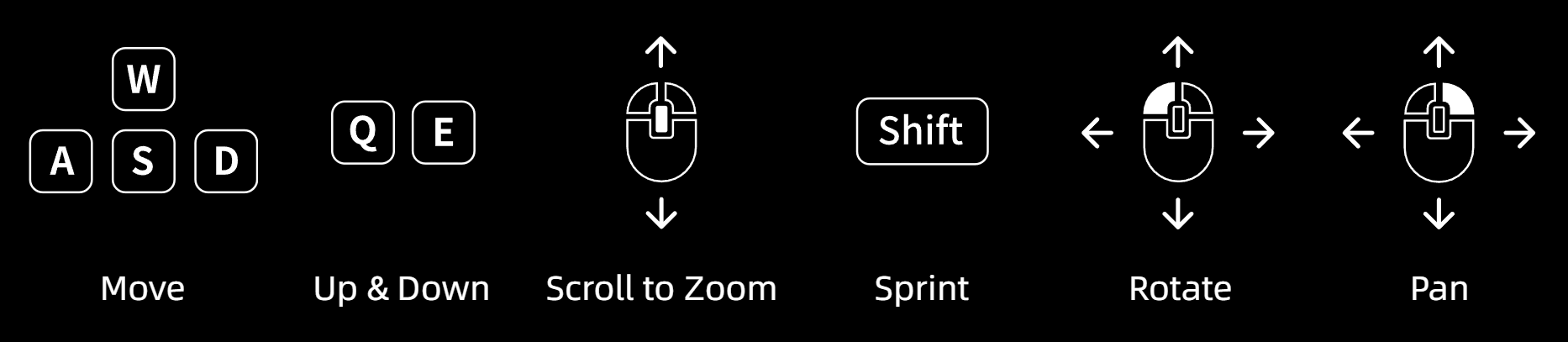
First-Person controls
| Control | Function |
|---|---|
| W / A / S / D / Q / E | Forward / Left / Back / Right / Down / Up |
| Shift | Sprint |
| Scroll wheel | Adjust movement speed |
| Left-click drag | Rotate view |
| Right-click drag | Pan view |
Pivot Mode
The camera rotates around a fixed pivot point in the scene, suited to global model inspection.
Panning the camera also shifts the pivot point, so switching abruptly from First-Person to Pivot can offset the center and cause erratic rotation. The Origin Point function therefore acts as Reset Center Point: click to recalibrate the camera and restore the model center.
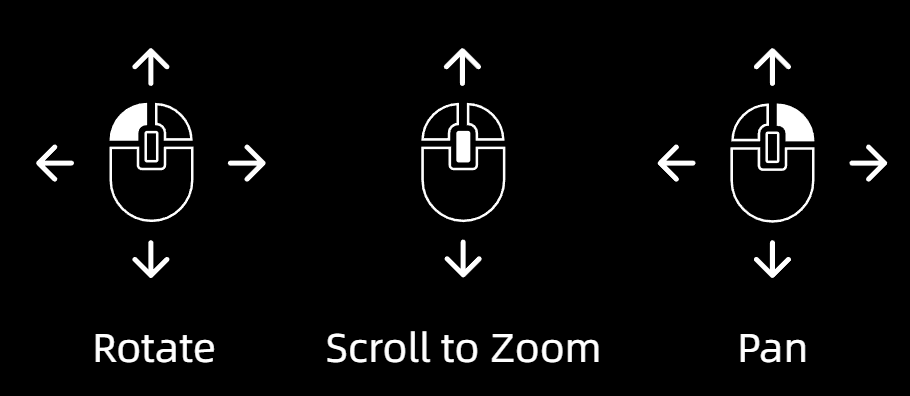
Pivot controls
| Control | Function |
|---|---|
| Scroll wheel | Zoom |
| Left-click drag | Rotate around the pivot point |
| Right-click drag | Pan view |
| Double-click a point | Quick-switch the pivot center |
Avatar Mode (Preview only)
Walk through the scene as a virtual character. This mode supports immersive navigation only; measurement and annotation are unavailable.
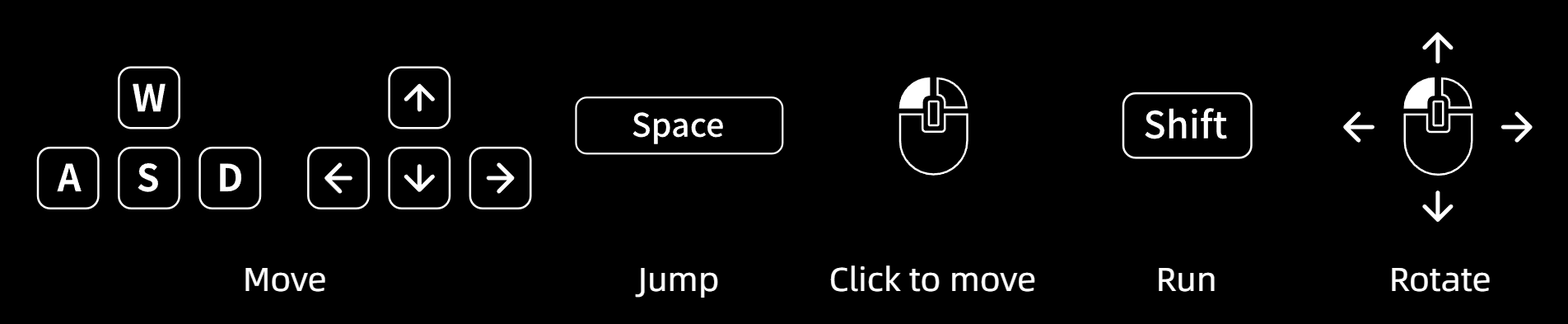
Avatar controls
| Control | Function |
|---|---|
| W / A / S / D | Forward / Left / Back / Right |
| Space | Jump |
| Shift | Sprint |
| Left-click a target | Click to navigate (auto-walk) |
| Left-click drag | Rotate view |