
Color Grading
Color Grading adjusts brightness, contrast, saturation, temperature, tint, and more to refine a scene's look. All adjustments support real-time preview and reset to default.
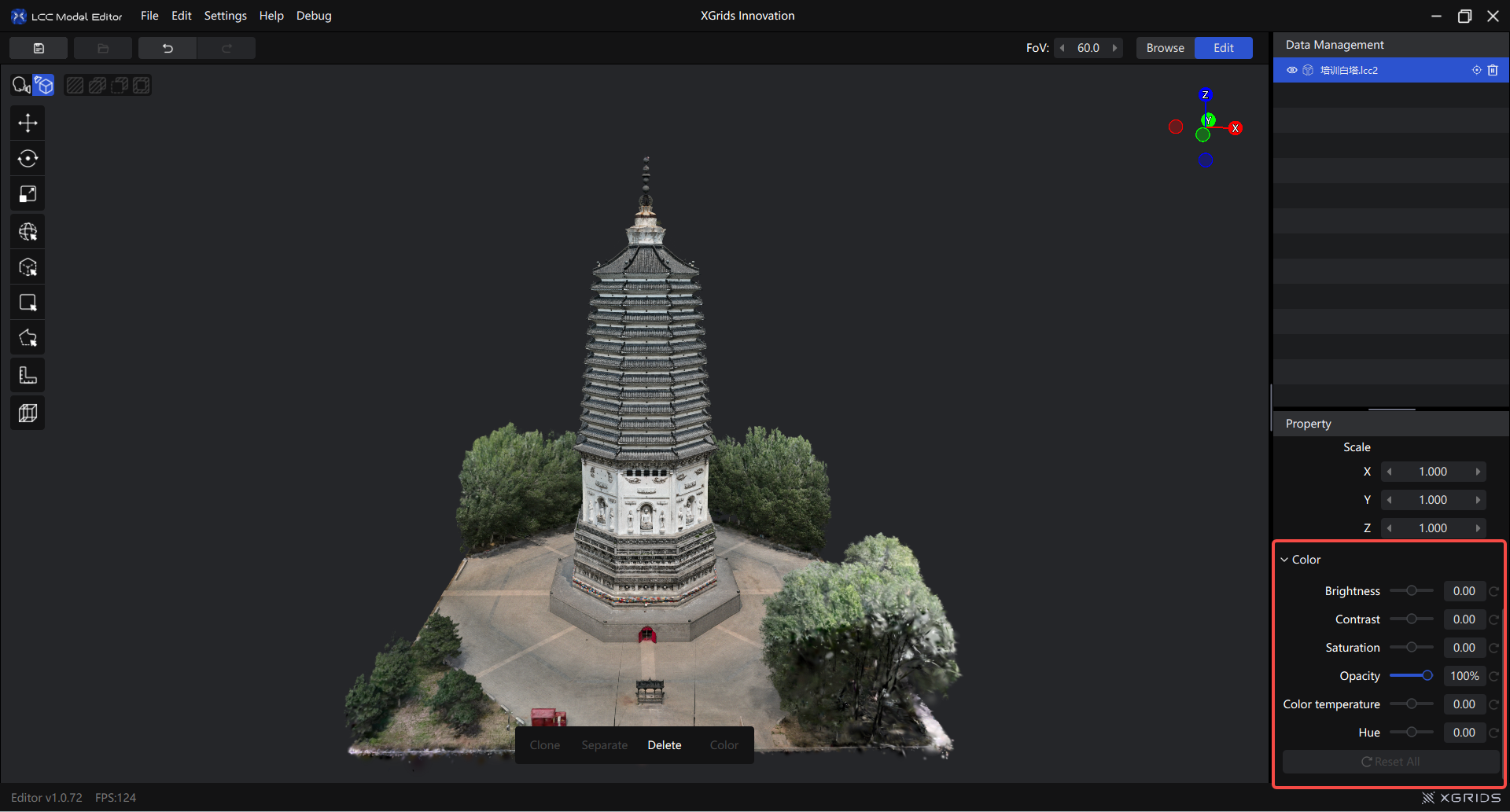
Color grading panel
Entry
Three entry points (active after selecting a model or selection):
- Left toolbar → Color grading
- Menu bar → Edit → Color grading
- Right Properties panel
Properties
| Property | Default | Range |
|---|---|---|
| Brightness | 0 | -1.00 ~ 1.00 |
| Contrast | 0 | -1.00 ~ 1.00 |
| Saturation | 0 | -1.00 ~ 1.00 |
| Highlights | 0 | -1.00 ~ 1.00 |
| Shadows | 0 | -1.00 ~ 1.00 |
| Opacity | 100% | 0% ~ 100% |
| Temperature | 0 | -1.00 ~ 1.00 |
| Tint | 0 | -1.00 ~ 1.00 |
How to Use
- Click Color grading in the toolbar to open the panel
- Drag a slider; the view updates in real time
- Adjustments save automatically when you're done
Tip: Adjust in moderation. Pushing brightness or contrast too far can lose detail.
Rules
- Whole-model grading: with a model selected, grading applies to the entire model
- Local grading: with a selector region selected, grading applies only to the selected content
- Add carries grading: adding a new region automatically applies the same grading as the current selection
- Subtract resets grading: subtracting a region resets the removed part to default values
- Grading stacks: grading a model overall and a local region separately stacks the effects
Use Cases
Single-model grading
Select a model and adjust the color values in the Properties panel.
Use case: Correcting an overall color cast, unifying scene style.
Region grading
Use a selector to pick a local region and grade it on its own.
Use case: Local correction — brightening shadows, fixing a local color cast, or correcting exposure / white-balance mismatches between data batches.