
3D Layout
The 3D Layout tool views and re-edits indoor scenes that had AI Spatial Recognition enabled during reconstruction.
Note:
- 3D Layout can be enabled only for indoor scenes that had AI Spatial Recognition checked during model reconstruction.
- The 3D Layout permission is required to use this feature.
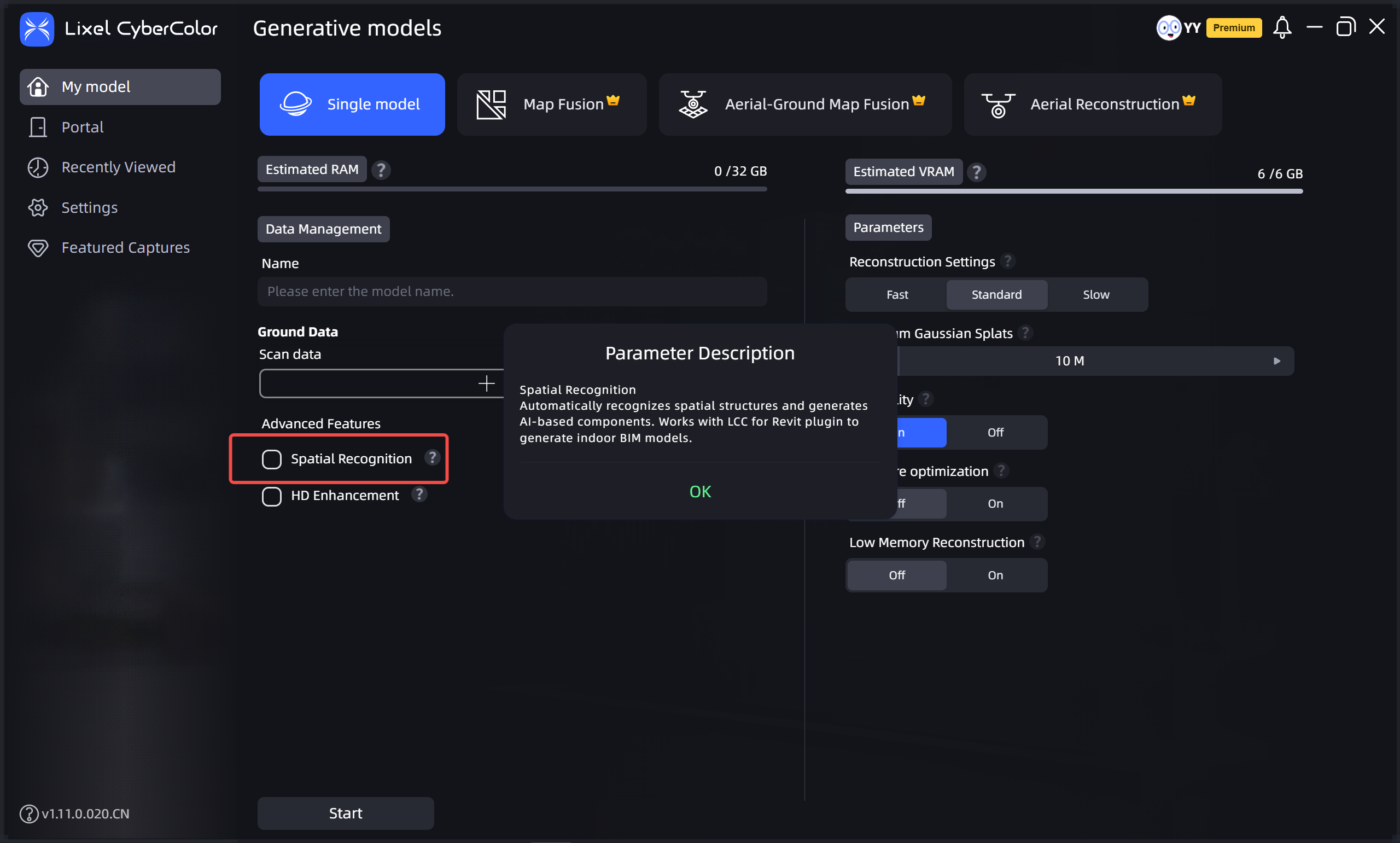
Check AI Spatial Recognition
Enter and Enable
First use requires manual import:
- File → Import → 3D Layout file directory → select the
semantic-resultfolder under the project files. - Click OK.
- In Scene Mode, click 3D Layout in the toolbar to enter.
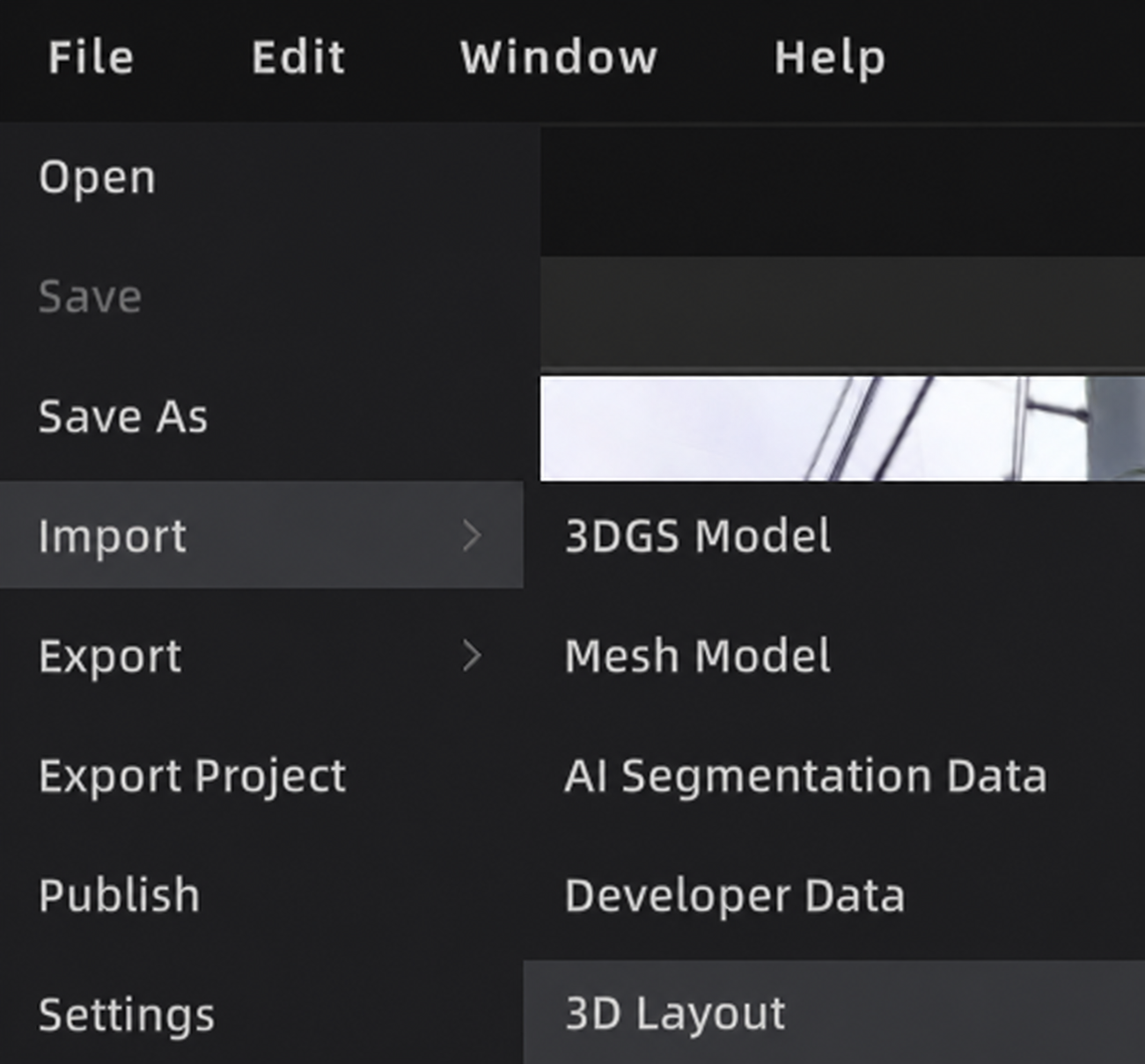
Import 3D Layout file
Interface and Tools
- The 3D Layout canvas is on the right; supports zoom in/out and drag to pan.
- The canvas supports 2D/3D view switching and 2D overlay.
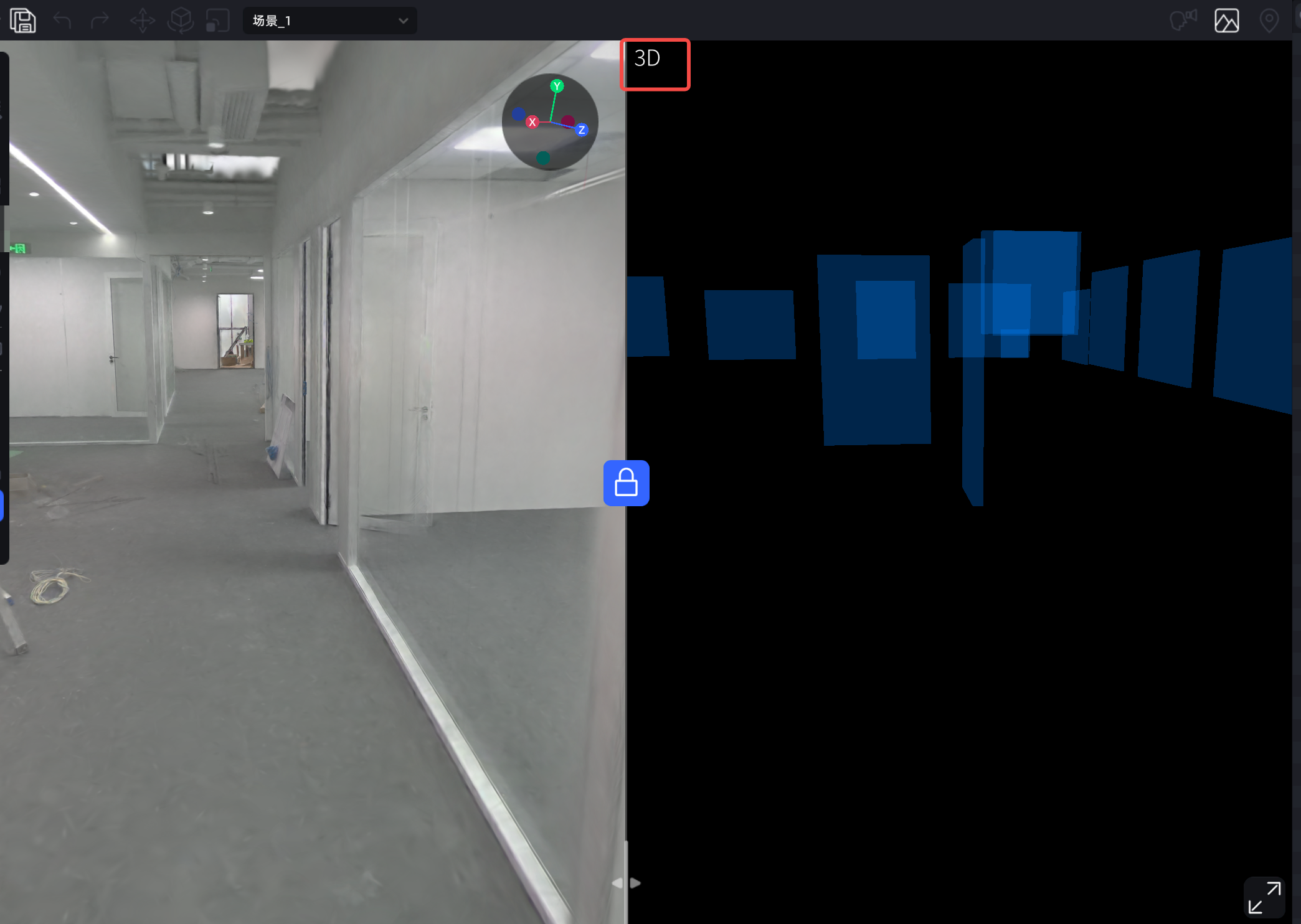
2D/3D view switching
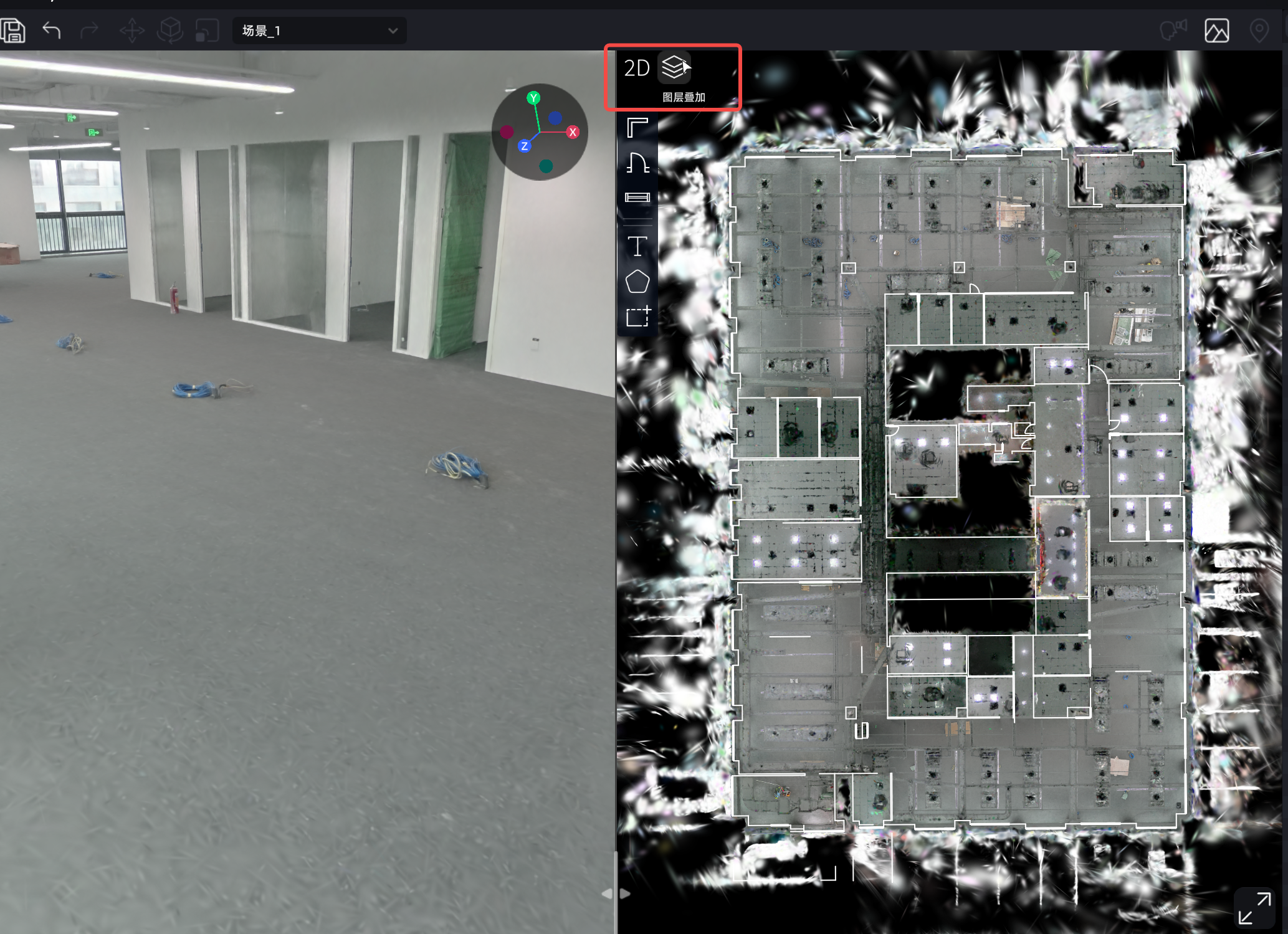
2D overlay
Plotting Tools
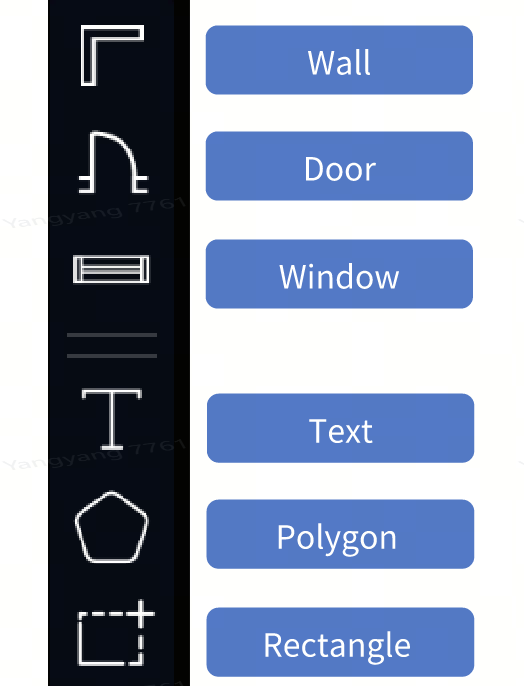
Plotting toolbar
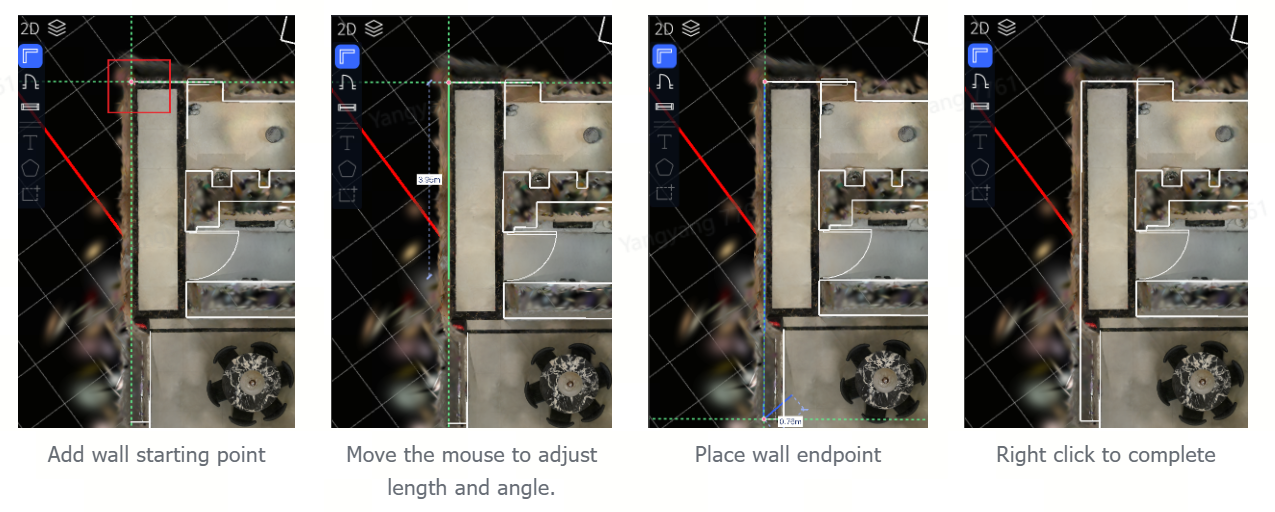
Wall
Click Wall → place start point → move to adjust → place end point → right-click to finish.
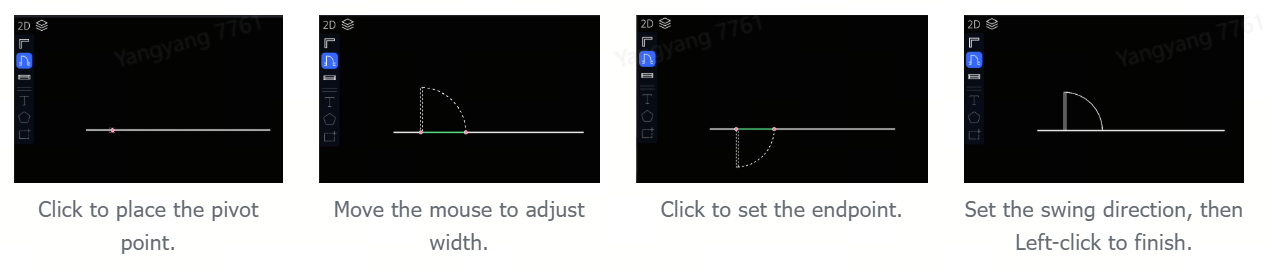
Door
Click Door → place pivot point → adjust width → set end point → adjust orientation.
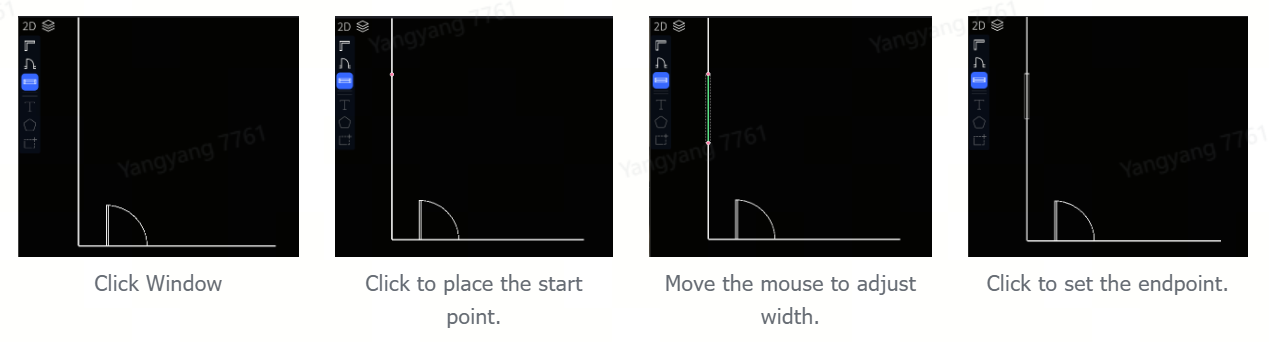
Window
Click Window → place start point → adjust width → set end point.
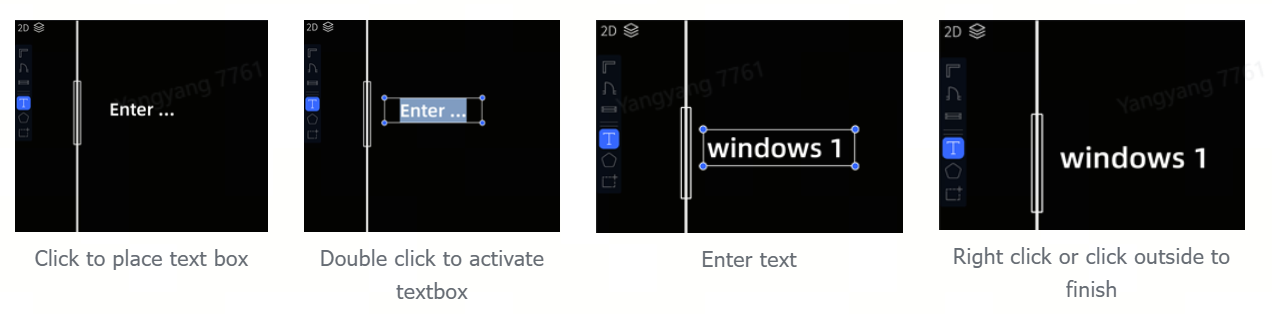
Text
Click T → place the text box → double-click to activate → type → click empty space to finish.
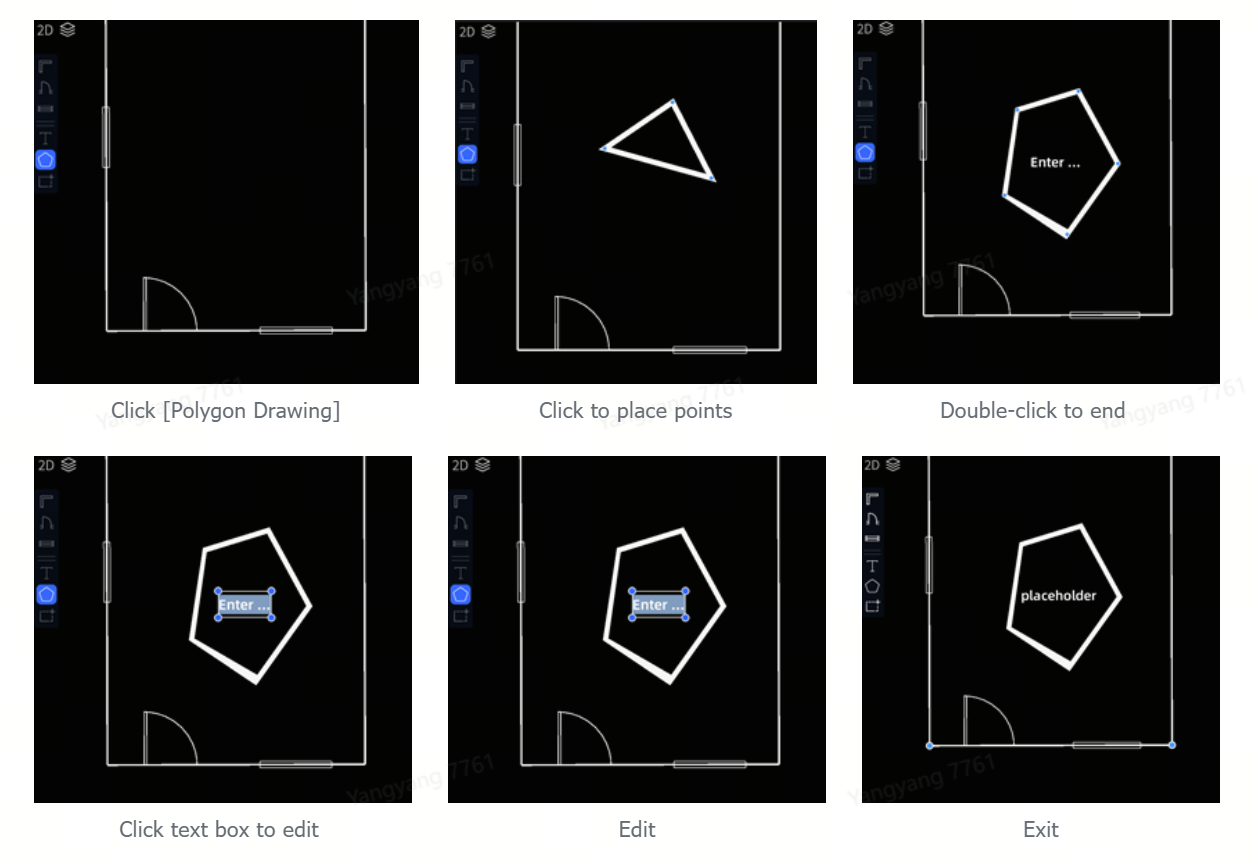
Polygon
Click Polygon → click to set draw points → double-click to finish.
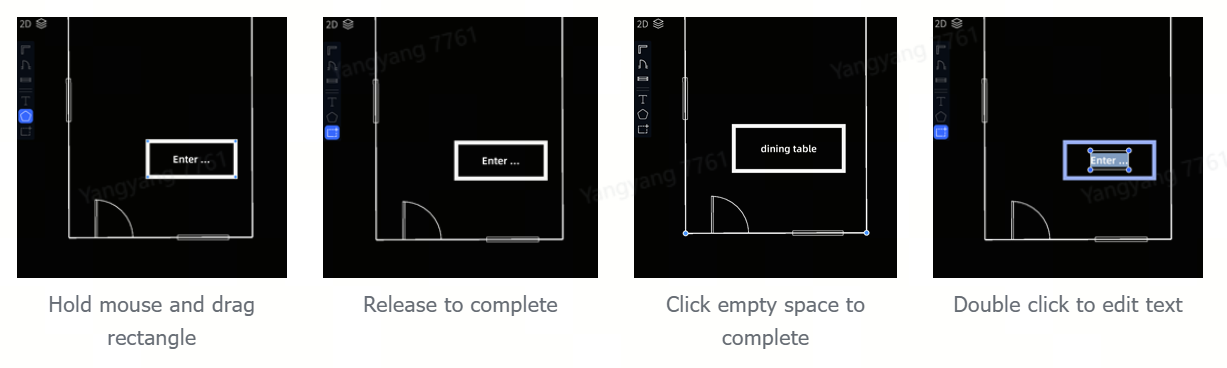
Rectangle
Click Rectangle → drag to draw → release to complete.
Switch View Shortcuts
Quick actions such as straighten and rotate 90° reorient the canvas in 2D view.
Export 3D Layout
In the asset list, right-click the 3D Layout → Export, as an OBJ 3D model file or a JPEG image.
- Supported formats: JPEG / OBJ
- Hidden assets are not exported.
Asset Management
After importing 3D Layout data, recognized components (walls, doors, windows, etc.) are grouped automatically by type.
Asset Actions
Asset group (right-click):
- Delete
- Export OBJ
- Export JPEG
Individual asset (right-click):
- Duplicate
- Delete
- Rename
Shortcuts:
- Shift + click: add to selection
- Ctrl + click: remove from selection
- Select, then Delete: delete selected assets