
Selectors
Selectors are a key foundational feature of the Model Editor, enabling flexible operations on selected regions. The editor supports four selector types and four selection modes.
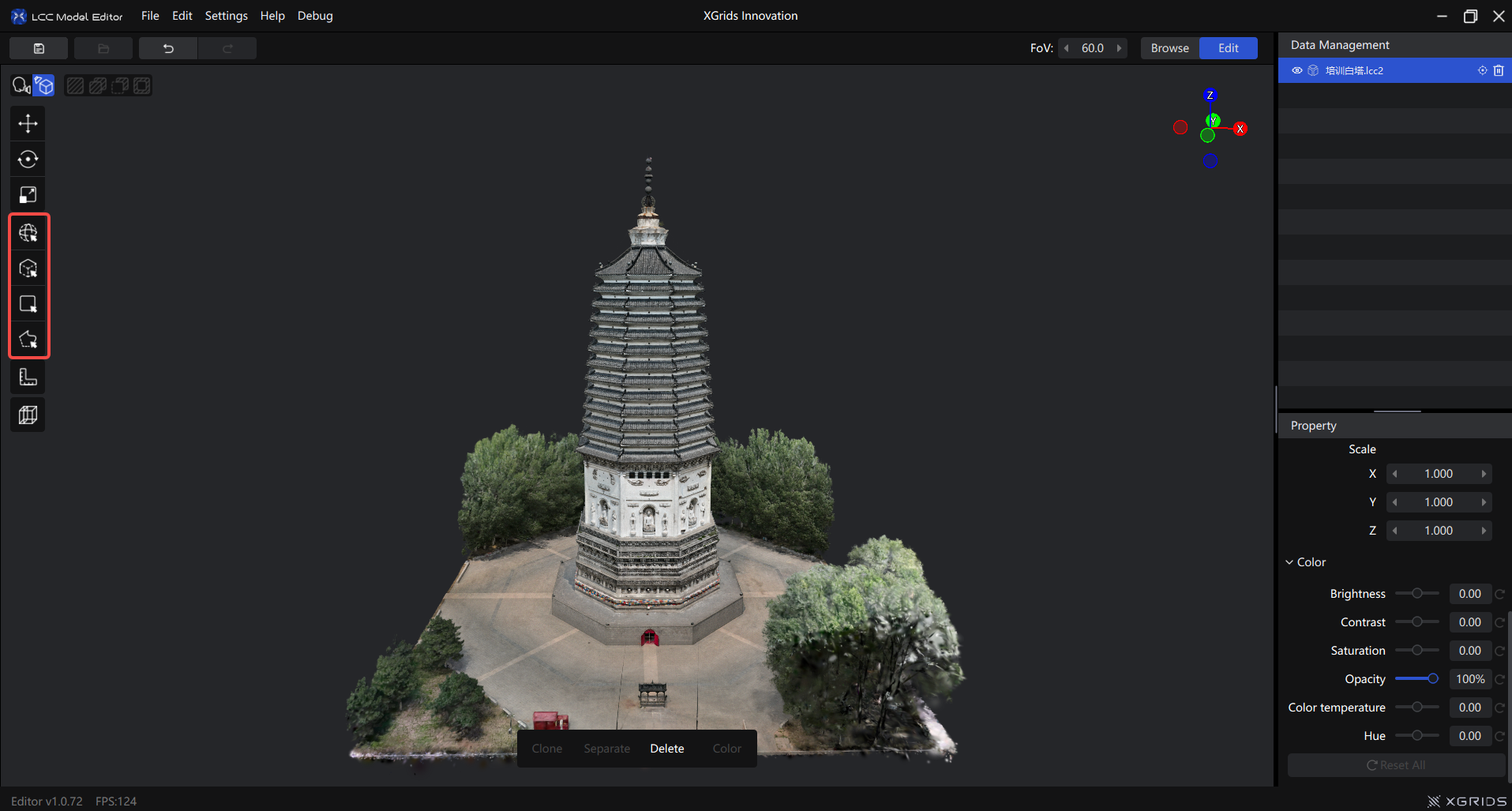
Selector buttons on the left toolbar
Selector Types
Sphere Select
Attaches a sphere at the cursor and selects the model content within its radius. The sphere's depth is set by the first layer of the model the view reaches.
How to use: Click "Sphere select" in the toolbar → hold the left button to select
| Action | Function |
|---|---|
| Left click | Select |
| Left hold and drag | Continuous select (brush mode) |
Ctrl + scroll | Adjust sphere radius |
Alt + left | Rotate view |
| Scroll | Zoom view |
| Right drag | Pan view |
Radius: Default 1.00. Adjust with Ctrl + scroll, base increment 0.01. Continuous scrolling accelerates automatically.
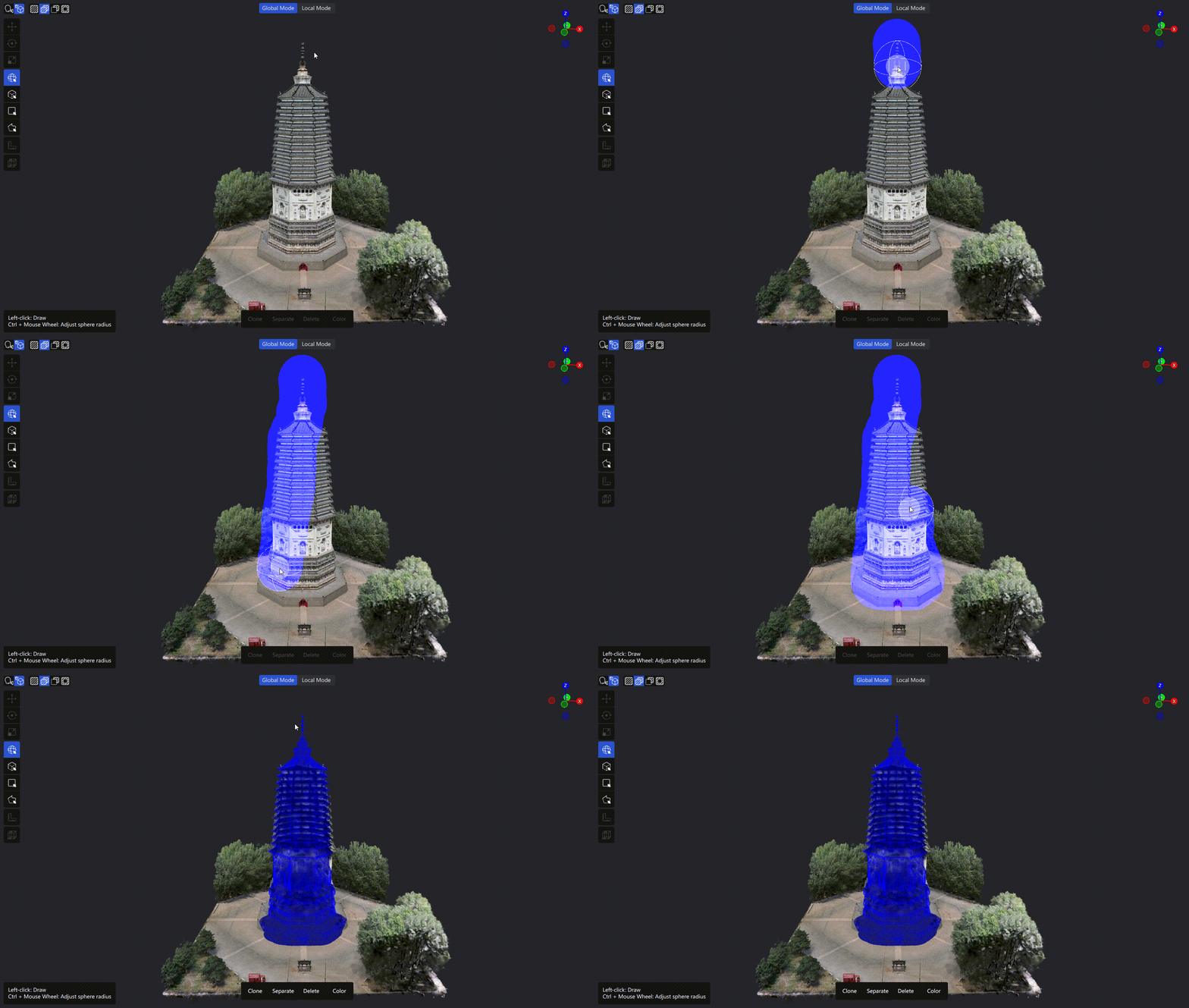
Sphere select operation
Box Selection
The only 3D selection method. Use it to precisely enclose a region in 3D space.
How to use:
- Click "Box selection"
- First click sets the first corner of the base
- Second click sets the opposite corner, forming a rectangular base
- Third click sets the height (Z axis)
- Check the √ to confirm
Adjust: Once created, the box can be moved, rotated, stretched, reset, and confirmed.
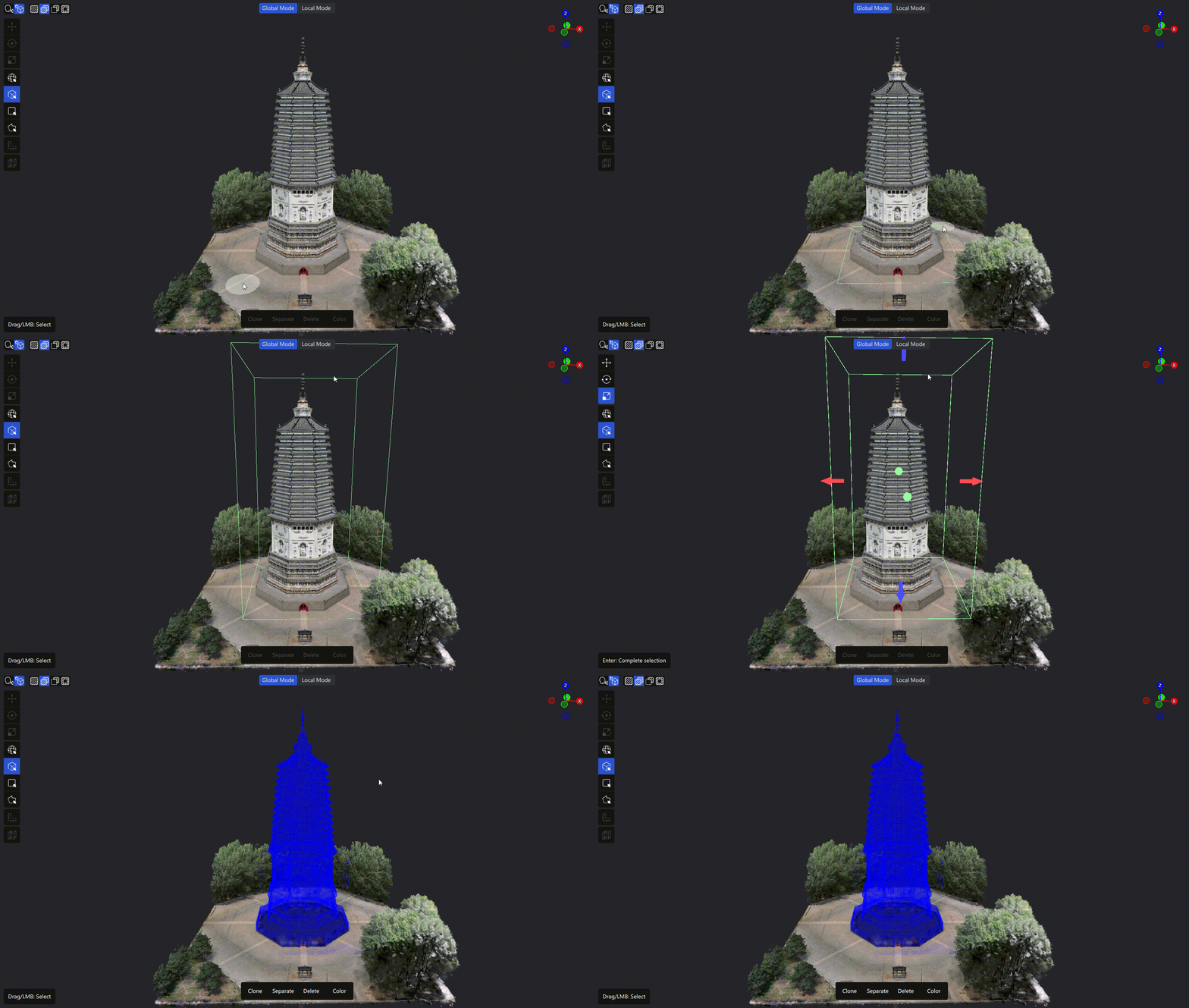
Box select operation
Rectangle Selector
Projection-selects a region based on the current camera view.
How to use: Click "Rectangle selector" → hold the left button and drag out a box → release to complete
Also supports click-to-create: left click the start point, move, then click again for the end point.
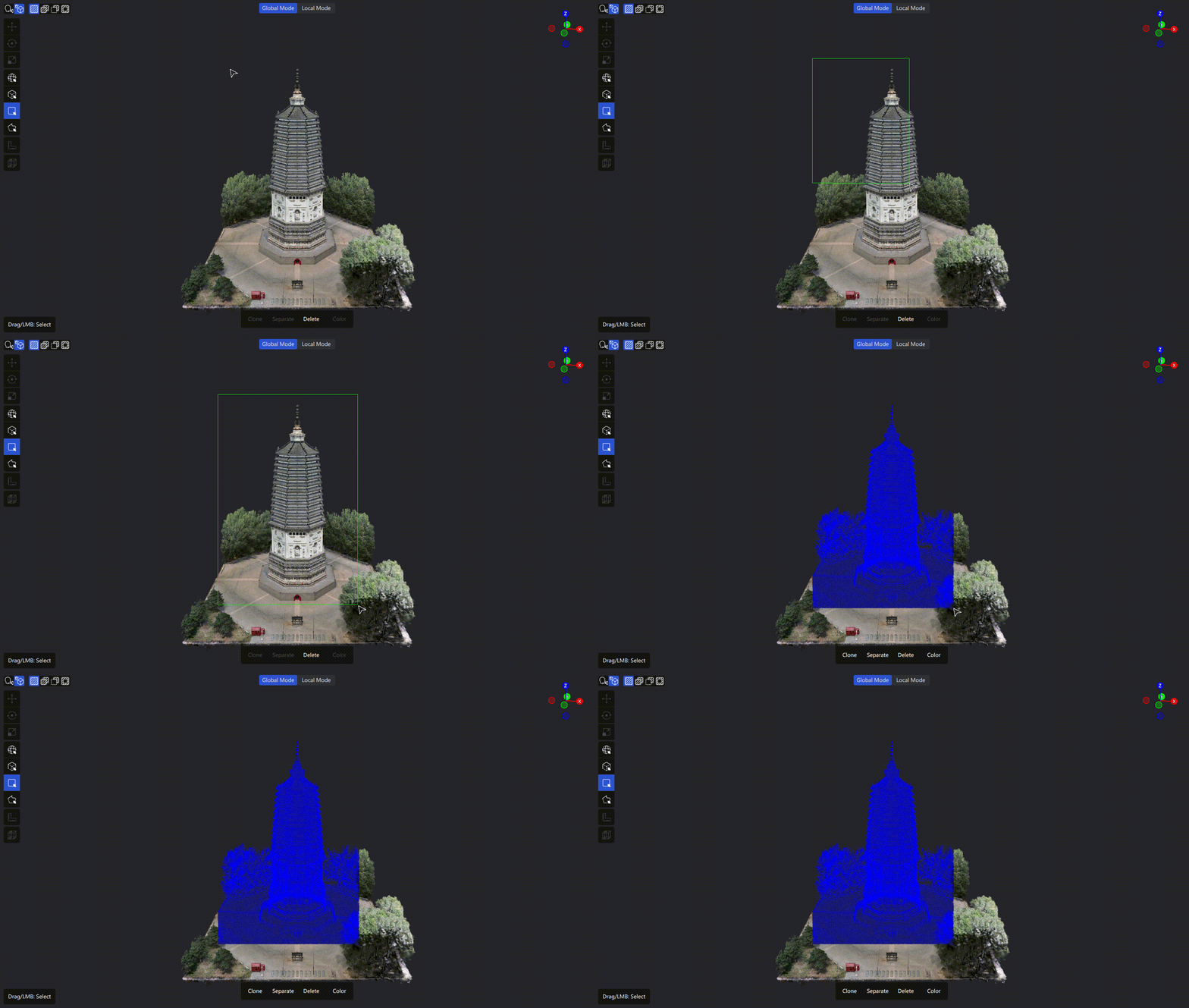
Rectangle select operation
Camera projection: From the camera, a beam shines toward your boxed region like a flashlight; everything the beam touches is selected.
Mixed Lasso Selector
Draw a polygon on screen to projection-select the scene. Supports straight-line and lasso drawing.
Straight-line:
- Left click to set the start point
- Keep clicking to add vertices
- Double-click to finish, or click the start point to close
Lasso:
- Hold the left button and drag to trace a line along the cursor path
- Release, then continue drawing
Either method: Right click to undo the last point
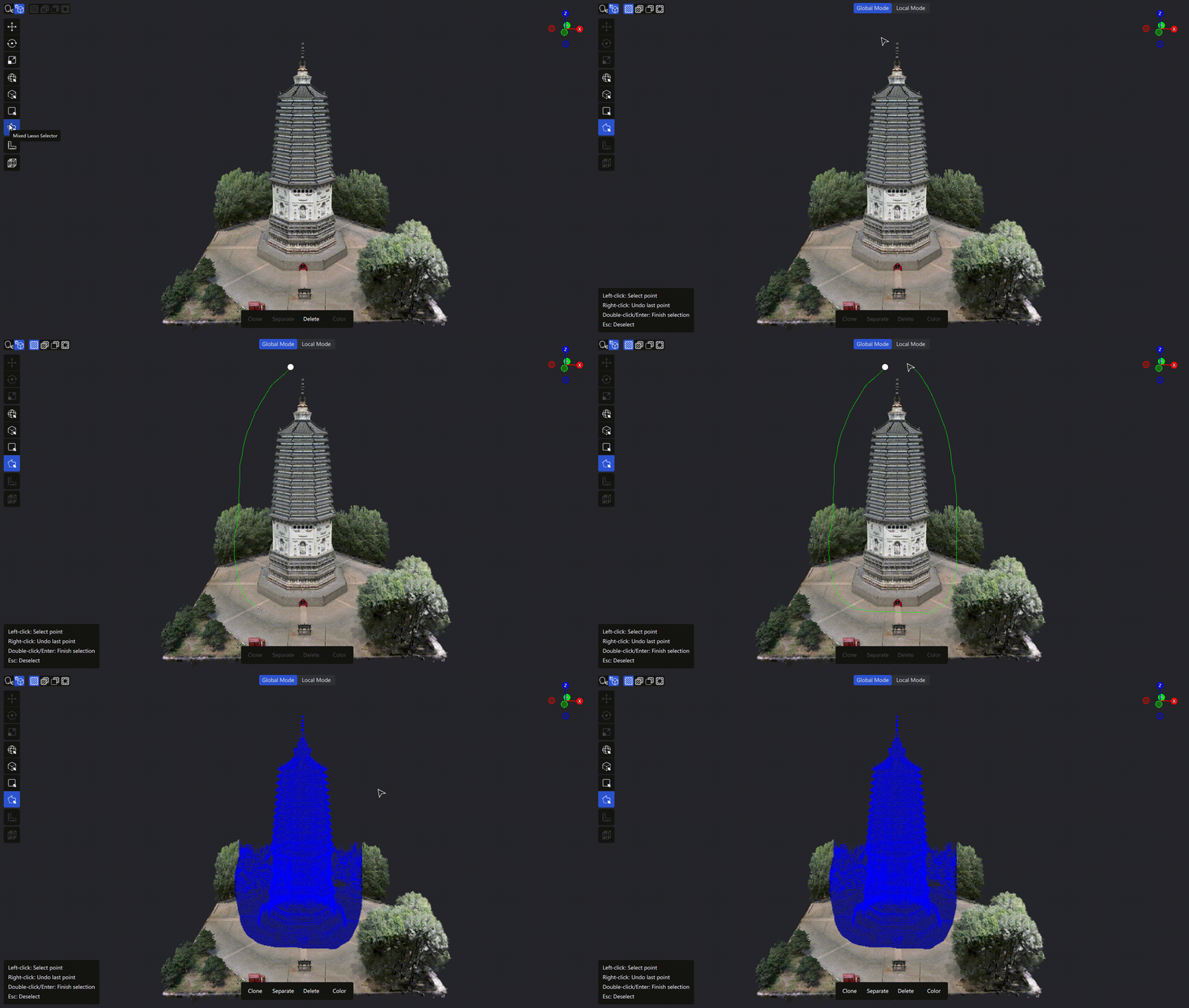
Polygon select (hybrid lasso) operation
Selection Modes
| Mode | Description | Shortcut |
|---|---|---|
| Single select | Each selection replaces the last | Default |
| Add to selection | Adds to the current selection | Shift |
| Subtract from selection | Removes from the current selection | Ctrl |
| Invert selection | Selects the unselected, deselects the selected | Ctrl + I |
Note: While adding, holding
Ctrlswitches to subtract.
Depth Control (2D selectors)
Polygon select and Rectangle select support depth control, which limits how far the selection penetrates.
- Default depth: 50.00 m
- Adjust by:
Ctrl+ scroll / panel slider / value entry - Click "Global" to remove the depth limit (select all depths)
- Depth patch: once a depth is set, the cursor shows a depth-range indicator in the scene
Confirm a Selection
After selecting, press Enter to confirm and create the selection. It's added to the asset list.
Model Display Modes
When a model exceeds what the current hardware can load, the editor offers two display modes to move between global positioning and fine editing.
Note: When a model is within hardware limits, the mode switch button doesn't appear and you edit at full quality directly.
| Mode | Description | Use case |
|---|---|---|
| Global mode (low quality) | Lowers render quality to show the full model | Locating a region, cross-region editing, global preview |
| Local mode (high quality) | Shows a high-quality model in blocks | Fine editing, detail adjustment |
How to switch
After entering Edit mode and using a selector, the mode switch button appears centered at the top of the 3D viewport.
- First use defaults to Global mode
- The system remembers your last choice and applies it next time
Save prompt when switching
If there are unsaved edits when you switch modes, the system prompts whether to save. You can save and switch, discard and switch, or cancel.
Hardware limit prompt
During editing, if the selected content exceeds the current hardware capacity, the system prompts to save. In Global mode, the system suggests switching to Local mode to continue editing.
Tips Summary
View control
- View lock: the camera locks automatically in selection mode
- Temporary unlock:
Alt+ left drag: rotate the camera- Right drag: pan the view
- Scroll: zoom the view
- Cancel selection: press
Esc
Selector comparison
| Use case | Recommended | Why |
|---|---|---|
| Quickly select a roughly regular region | Rectangle select | Simple and efficient |
| Precisely select a complex, irregular region | Polygon select | Precise and flexible |
| New users or quick tasks | Rectangle select | Easy to learn |
| High precision or edge control | Polygon select | Finer custom selections |
Shortcut reference
| Function | Shortcut | Description |
|---|---|---|
| Crop selected content | Delete / Backspace | Crops the current selection |
| Add to selection | Shift | Adds to the existing selection |
| Subtract from selection | Ctrl | Excludes from the existing selection |
| Invert selection | Ctrl + I | Toggles between "inside the box" and "outside the box" |
| Cancel selection | Esc | Cancels the current selection drawing |
| Undo | Ctrl + Z | Undoes the last action |
| Redo | Ctrl + Shift + Z | Restores an undone action |
| Unlock view | Alt (hold) | Temporarily unlocks the camera |
| Exit crop mode | Esc | Exits the current crop state |