
Product Overview and Home
Product Overview
LCC Scene Editor is a desktop application for editing and viewing 3DGS projects and scenes. Work is organized by project. Import and manage project resources, create and maintain annotations, measurements, viewpoints, 3D Layout, and scene reports in the 3D scene, then publish results to the online viewer for sharing and delivery.
Download and Installation
See Download and Installation.
Home
Double-click to open LCC Scene Editor, or enter the Editor home from LCC Studio → My Projects.
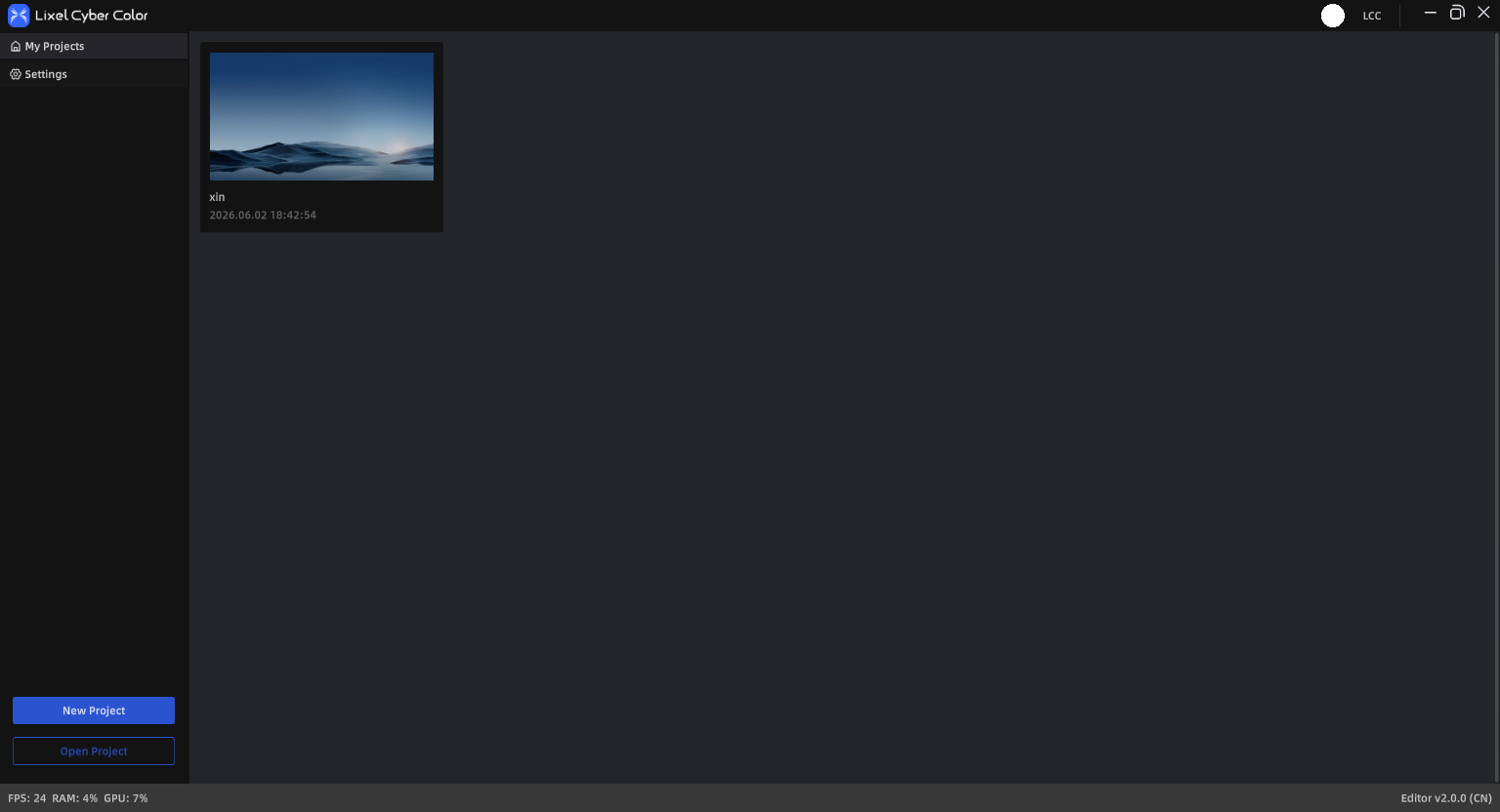
LCC Scene Editor home
My Projects
My Projects manages your projects as cards.
From a project card or list menu:
Common actions:
- View: open in preview mode
- Edit: open in edit mode
- Rename: change the project name
- Open folder location: open the project directory
- Delete: delete the project and its folder contents
Unpublished projects:
- Publish: publish to the cloud and generate a Web Viewer link for sharing
Publish entry points:
- Quick-publish button at the lower right of the project card, or More (upper right) → Publish
- Edit view menu bar → File → Publish
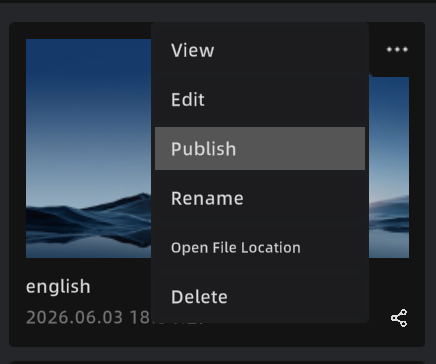
Project page publish entry
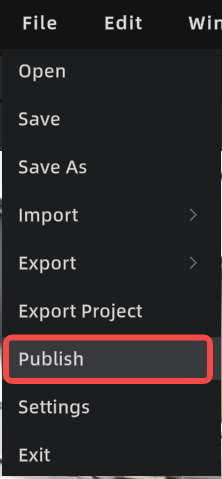
Editor publish entry
Published projects:
- View online: open in the Web Viewer
- Update: sync the latest content to the Web Viewer
- Publish management: manage published links and permission settings
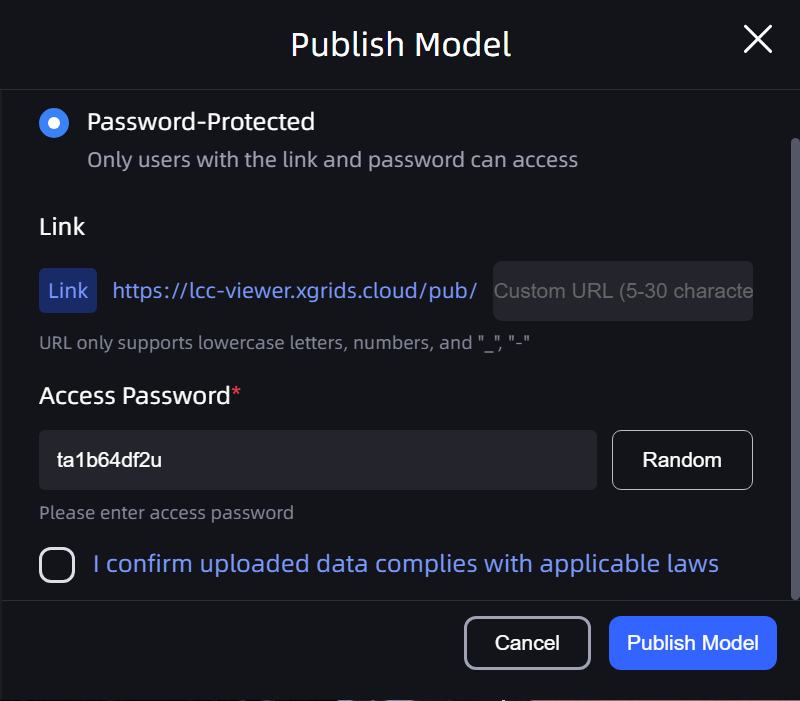
Publish
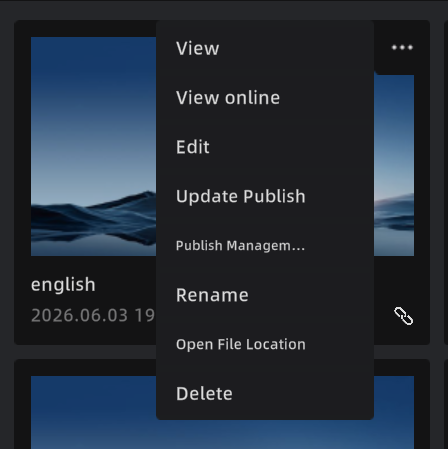
Published project
New Project
- On the home page, click New Project.
- Enter a project name (up to 60 characters; Chinese, letters, digits, "_" and "-").
- Choose a storage path.
- Confirm to create and enter the edit view.
Open Project / Model
- Open Project: continue editing the project's model and editing data (annotations / measurements / viewpoints, etc.)
- Open Model File: open a single model for viewing or temporary editing. For long-term maintenance, use Save to generate a project.
Home Settings
Top right of the home page:
- Language: Chinese, English, Japanese, Traditional Chinese, Italian, German, Spanish
- About: latest installer link and tutorials; submit feedback to the LCC team
- Data & Privacy: view and manage data-collection settings
Note: Language changes take effect after you reopen the app.