XGRIDSDocs
  • 简体中文
  • English
  • 繁體中文
  • 日本語
  • Deutsch
  • Español
  • Italiano
  • 简体中文
  • English
  • 繁體中文
  • 日本語
  • Deutsch
  • Español
  • Italiano
  • PortalCam

    • Product Overview
    • Basic Operation
    • Using the LCC Scan App
    • Maintenance and Care
    • FAQ
  • Lixel K Series

    • Lixel K1

      • Product Overview
      • Basic Operation
      • Device Activation and Connection
      • Scanning Workflow
      • Acquire Point Cloud Data with Absolute Coordinate
      • Map Fusion
      • Route Planning Suggestions for Typical Scenes
      • Precautions
      • FAQ
    • Lixel K2

      • Product Overview
      • Basic Operation
      • Device Activation and Connection
      • Scanning Workflow
      • Acquire Point Cloud Data with Absolute Coordinate
      • Map Fusion
      • Route Planning Suggestions for Typical Scenes
      • Precautions
      • FAQ
  • Lixel L Series

    • Lixel L2 Pro

      • Product Overview
      • Basic Operation
      • Device Activation and Connection
      • Scanning Workflow
      • Acquire Point Cloud Data with Absolute Coordinate
      • Measure Point
      • Appendix
      • FAQ
  • Lixel Studio

    • Version and Copyright
    • Installation and Activation
    • Software Interface
    • File Operations
    • Project Processing
    • Tools
    • 2D Drawing
    • Applications
    • Settings
    • Device Connection
    • FAQ
  • Lixel CyberColor

    • LCC Studio

      • Getting Started
      • Version and Updates
      • Download and Installation
      • Interface Overview and Navigation
      • Pre-Reconstruction Work
      • Model Reconstruction
      • Single Model Reconstruction
      • Map Fusion
      • Aerial-Ground Map Fusion
      • Aerial Reconstruction
      • My Models
      • Other Features
      • Settings and Account
      • Video Reconstruction
      • FAQ
    • LCC Scene Editor

      • Version & Updates
      • Account & Login
      • Product Overview & Home
      • Editor Interface
      • Scene Navigation Modes
      • File
      • Settings
      • Edit Operations
      • Window
      • Global Toolbar
      • Assets & Properties
      • Left Toolbar
      • Viewpoints
      • Portal
      • Skybox
      • Annotations
      • Measurement
      • Flythrough
      • Scene Report
      • 3D Layout
      • Preview Mode (Viewer)
      • Help
      • FAQ
      • Spawn Point
    • LCC Model Editor

      • Version and Updates
      • User Guide
      • Overview and Interface
      • File Operations
      • Selectors
      • Editing Models
      • Measurement
      • Color Grading
      • Asset Management
      • Settings and Help
      • FAQ
    • 04-capture-guide

      • Overview
      • Capture Devices Overview
      • General Capture Principles
      • Indoor Scene Capture
      • Outdoor Scene Capture
      • Large-Scale Capture (Map Fusion)
      • Aerial-Ground Map Fusion Capture
      • Object Capture
      • People Capture
      • Video Reconstruction Capture
      • HD Enhancement
      • Control Points (Lixel P1)
      • FAQ and Troubleshooting
    • Version History

Annotations

The Annotation tool places clickable annotation points in the scene. Annotation content can include a title, body text, media, and links. Two annotation types are supported: Display Annotation and Portal.
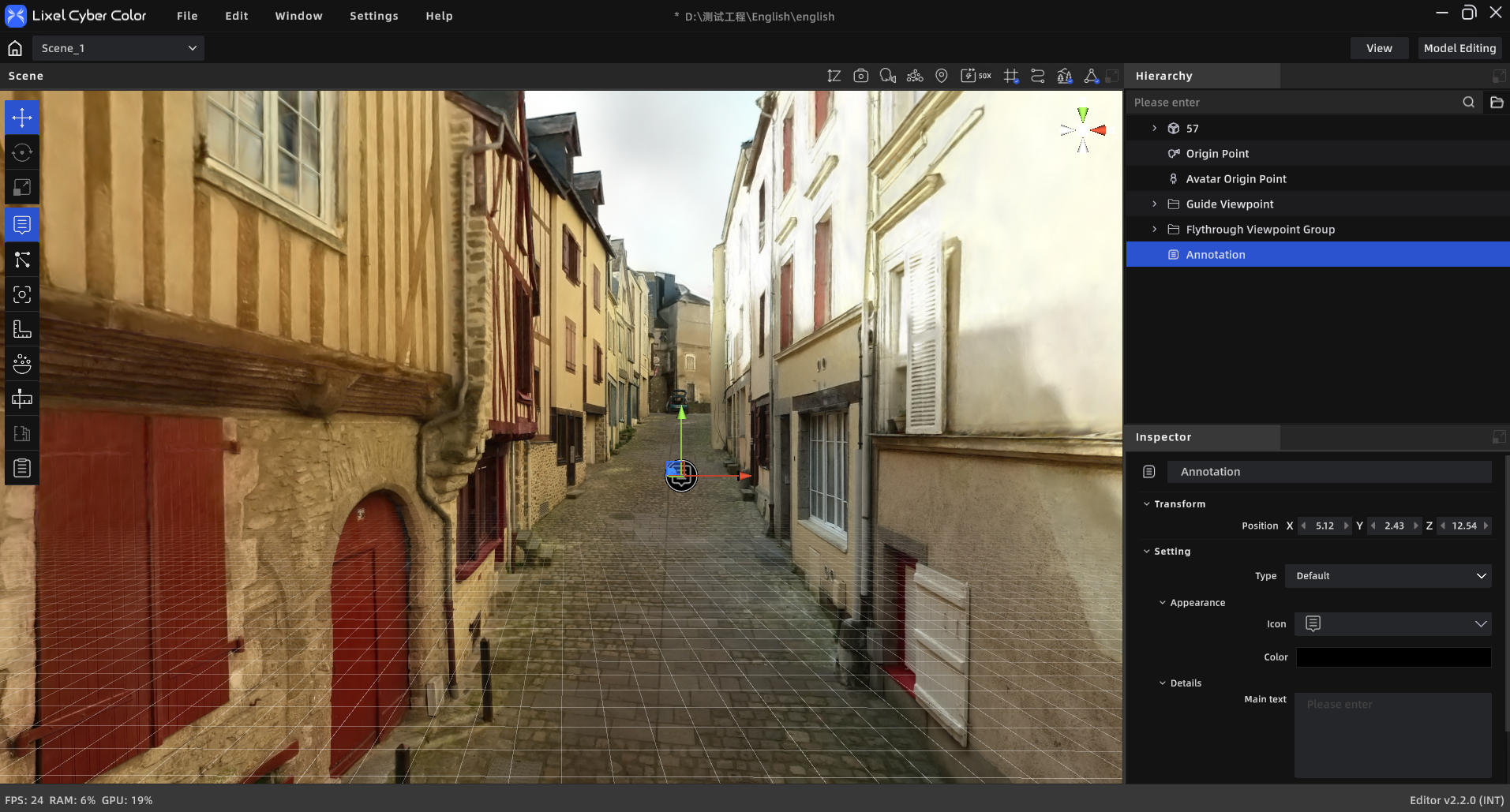
Annotations

Annotations

Workflow

Adding an Annotation Point

  1. Click Annotations in the toolbar to enter annotation mode
  2. Single-click a surface on the target model to place the annotation point
  3. Select the annotation type: Display Annotation / Portal
  4. Fill in the relevant content in the properties panel
  5. Click Annotations in the toolbar again to exit annotation mode

Display Annotation

  • Choose an icon style and color
  • Enter a title (required, ≤50 characters)
  • Enter body text (≤1000 characters)
  • Add media:
    • Snapshot: Click the snapshot button → navigate to the angle → click to capture (up to 5 photos)
    • File upload: Click + in the media area; supports JPEG / PNG / MP4, up to 5 files, max 500 MB each
  • Add a link: Paste a URL in the "Link" field

Portal

New in V2.2 — supports placing portals at any scene location and configuring same-scene or cross-scene jump targets. See Portal.


Editing & Managing Annotations

Edit an Annotation

  • Click the annotation in the asset list or 3D scene
  • The properties panel shows the annotation's editable content (title, body, media, link, etc.) directly
  • Edit in the properties panel — no separate editing panel needed
  • Drag the annotation point in the 3D view to reposition it

Delete an Annotation

  • Select the annotation in the 3D view or asset list
  • Press Delete, or right-click and choose "Delete"

Visibility Control

  • Toggle individual annotation visibility using the eye icon in the asset list
  • The Annotations toolbar button is only a creation entry point; it does not control overall annotation visibility
Prev
Skybox
Next
Measurement