XGRIDSDocs
  • 简体中文
  • English
  • 繁體中文
  • 日本語
  • Deutsch
  • Español
  • Italiano
  • 简体中文
  • English
  • 繁體中文
  • 日本語
  • Deutsch
  • Español
  • Italiano
  • PortalCam

    • Product Overview
    • Basic Operation
    • Using the LCC Scan App
    • Maintenance and Care
    • FAQ
  • Lixel K Series

    • Lixel K1

      • Product Overview
      • Basic Operation
      • Device Activation and Connection
      • Scanning Workflow
      • Acquire Point Cloud Data with Absolute Coordinate
      • Map Fusion
      • Route Planning Suggestions for Typical Scenes
      • Precautions
      • FAQ
    • Lixel K2

      • Product Overview
      • Basic Operation
      • Device Activation and Connection
      • Scanning Workflow
      • Acquire Point Cloud Data with Absolute Coordinate
      • Map Fusion
      • Route Planning Suggestions for Typical Scenes
      • Precautions
      • FAQ
  • Lixel L Series

    • Lixel L2 Pro

      • Product Overview
      • Basic Operation
      • Device Activation and Connection
      • Scanning Workflow
      • Acquire Point Cloud Data with Absolute Coordinate
      • Measure Point
      • Appendix
      • FAQ
  • Lixel Studio

    • Version and Copyright
    • Installation and Activation
    • Software Interface
    • File Operations
    • Project Processing
    • Tools
    • 2D Drawing
    • Applications
    • Settings
    • Device Connection
    • FAQ
  • Lixel CyberColor

    • LCC Studio

      • Getting Started
      • Version and Updates
      • Download and Installation
      • Interface Overview and Navigation
      • Pre-Reconstruction Work
      • Model Reconstruction
      • Single Model Reconstruction
      • Map Fusion
      • Aerial-Ground Map Fusion
      • Aerial Reconstruction
      • My Models
      • Other Features
      • Settings and Account
      • Video Reconstruction
      • FAQ
    • LCC Scene Editor

      • Version & Updates
      • Account & Login
      • Product Overview & Home
      • Editor Interface
      • Scene Navigation Modes
      • File
      • Settings
      • Edit Operations
      • Window
      • Global Toolbar
      • Assets & Properties
      • Left Toolbar
      • Viewpoints
      • Portal
      • Skybox
      • Annotations
      • Measurement
      • Flythrough
      • Scene Report
      • 3D Layout
      • Preview Mode (Viewer)
      • Help
      • FAQ
      • Spawn Point
    • LCC Model Editor

      • Version and Updates
      • User Guide
      • Overview and Interface
      • File Operations
      • Selectors
      • Editing Models
      • Measurement
      • Color Grading
      • Asset Management
      • Settings and Help
      • FAQ
    • Capture Guide

      • Overview
      • Capture Devices Overview
      • General Capture Principles
      • Indoor Scene Capture
      • Outdoor Scene Capture
      • Large-Scale Capture (Map Fusion)
      • Aerial-Ground Map Fusion Capture
      • Object Capture
      • People Capture
      • Video Reconstruction Capture
      • HD Enhancement
      • Control Points (Lixel P1)
      • FAQ and Troubleshooting
    • Version History

Preview Mode (Viewer)

Preview Mode is for browsing an open LCC scene. It supports basic navigation, viewing viewpoints and scene reports, and provides distance and area measurement capabilities.

Interface Overview
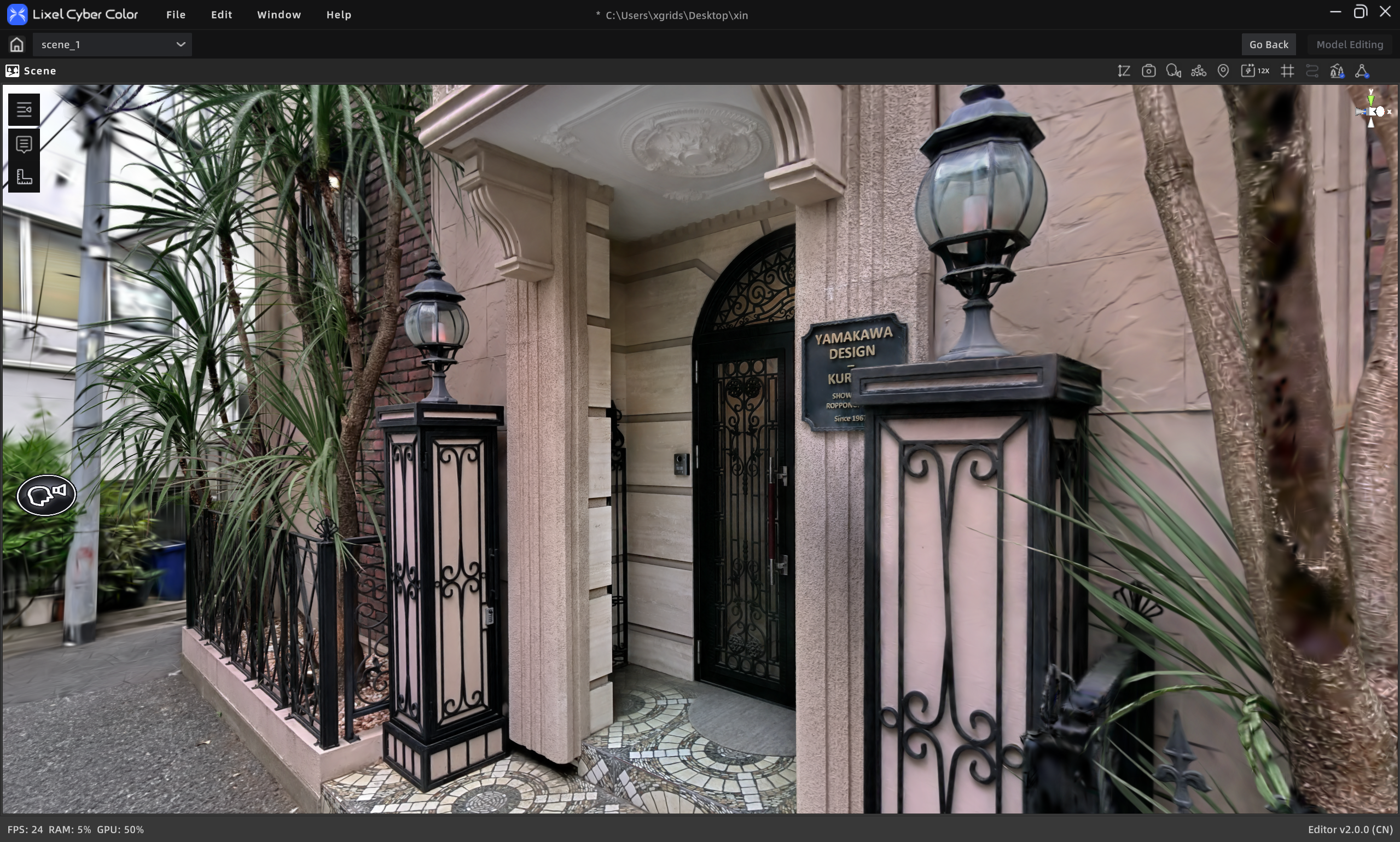
Preview Mode Interface

Preview Mode Interface

View Toolbar

#ButtonDescription
1Height FilterEnable/disable Z-axis height filtering
2ScreenshotCapture the current view
3Mode ToggleRoaming / Pivot / Avatar
4Point Cloud ToggleSwitch between point cloud and Gaussian rendering
5Return to Spawn PointReset camera to the initial position
6Camera SpeedAdjust camera movement speed
7GridShow / hide grid
8Capture TrajectoryShow / hide capture trajectory
9Environment DataToggle environment data display
10CollisionEnable / disable collision

Professional Toolbar

#ButtonDescription
1ViewpointsView / jump to tour viewpoints
2Annotation ListView / jump to annotations (supports portal interaction)
3MeasurementTemporary measurement (not saved)
4Scene ReportOpen the scene report (hidden when no report exists)

View Toolbar Details

Height Filter

Control model visibility by adjusting the Z-axis height range.

  1. Click the height filter button to enter height filter mode
  2. Drag the top/bottom sliders to adjust the height range
  3. Click the height filter button again to exit

Screenshot

Capture the current view and save as an image file.

Mode Toggle

Three navigation modes are available:

  • First-Person Mode: Walk freely through the scene from a first-person perspective
  • Pivot Mode: Orbit around a target point for observation
  • Avatar Mode: Roam the scene as a virtual character

Return to Spawn Point

Quickly reset the camera to the spawn point position.

Camera Speed

Adjust camera movement speed for roaming and pivot modes.

How to adjust:

  • Toolbar slider: drag to adjust, range 1–100
  • Shortcut: Ctrl + mouse wheel

Professional Toolbar Details

Viewpoints

Open the viewpoints tool. Click a tour thumbnail to jump to the corresponding angle.

Annotation List

View annotation content (photos, videos, links, text, etc.) in the scene. In V2.2, clicking a portal automatically jumps to the target scene/position.

  • Click Annotations in the toolbar to open the annotation list
  • Hover over a scene annotation to see a summary
  • Click a portal → automatically jumps to the target scene and position
  • Two-way portals show a return button → click to go back to the configured return target

Measurement

View measurement data.

Scene Report

View the project's generated reports, including floor plans, viewpoints (screenshots with dimensions/area info), and more. This button is hidden when no report exists.

Prev
3D Layout
Next
Help