XGRIDSDocs
  • 简体中文
  • English
  • 繁體中文
  • 日本語
  • Deutsch
  • Español
  • Italiano
  • 简体中文
  • English
  • 繁體中文
  • 日本語
  • Deutsch
  • Español
  • Italiano
  • PortalCam

    • Product Overview
    • Basic Operation
    • Using the LCC Scan App
    • Maintenance and Care
    • FAQ
  • Lixel K Series

    • Lixel K1

      • Product Overview
      • Basic Operation
      • Device Activation and Connection
      • Scanning Workflow
      • Acquire Point Cloud Data with Absolute Coordinate
      • Map Fusion
      • Route Planning Suggestions for Typical Scenes
      • Precautions
      • FAQ
    • Lixel K2

      • Product Overview
      • Basic Operation
      • Device Activation and Connection
      • Scanning Workflow
      • Acquire Point Cloud Data with Absolute Coordinate
      • Map Fusion
      • Route Planning Suggestions for Typical Scenes
      • Precautions
      • FAQ
  • Lixel L Series

    • Lixel L2 Pro

      • Product Overview
      • Basic Operation
      • Device Activation and Connection
      • Scanning Workflow
      • Acquire Point Cloud Data with Absolute Coordinate
      • Measure Point
      • Appendix
      • FAQ
  • Lixel Studio

    • Version and Copyright
    • Installation and Activation
    • Software Interface
    • File Operations
    • Project Processing
    • Tools
    • 2D Drawing
    • Applications
    • Settings
    • Device Connection
    • FAQ
  • Lixel CyberColor

    • LCC Studio

      • Getting Started
      • Version and Updates
      • Download and Installation
      • Interface Overview and Navigation
      • Pre-Reconstruction Work
      • Model Reconstruction
      • Single Model Reconstruction
      • Map Fusion
      • Aerial-Ground Map Fusion
      • Aerial Reconstruction
      • My Models
      • Other Features
      • Settings and Account
      • Video Reconstruction
      • FAQ
    • LCC Scene Editor

      • Version & Updates
      • Account & Login
      • Product Overview & Home
      • Editor Interface
      • Scene Navigation Modes
      • File
      • Settings
      • Edit Operations
      • Window
      • Global Toolbar
      • Assets & Properties
      • Left Toolbar
      • Viewpoints
      • Portal
      • Skybox
      • Annotations
      • Measurement
      • Flythrough
      • Scene Report
      • 3D Layout
      • Preview Mode (Viewer)
      • Help
      • FAQ
      • Spawn Point
    • LCC Model Editor

      • Version and Updates
      • User Guide
      • Overview and Interface
      • File Operations
      • Selectors
      • Editing Models
      • Measurement
      • Color Grading
      • Asset Management
      • Settings and Help
      • FAQ
    • 04-capture-guide

      • Overview
      • Capture Devices Overview
      • General Capture Principles
      • Indoor Scene Capture
      • Outdoor Scene Capture
      • Large-Scale Capture (Map Fusion)
      • Aerial-Ground Map Fusion Capture
      • Object Capture
      • People Capture
      • Video Reconstruction Capture
      • HD Enhancement
      • Control Points (Lixel P1)
      • FAQ and Troubleshooting
    • Version History

Global Toolbar

The global toolbar is located in the upper-right area of the 3D viewport and provides quick access to scene display options and common functions.
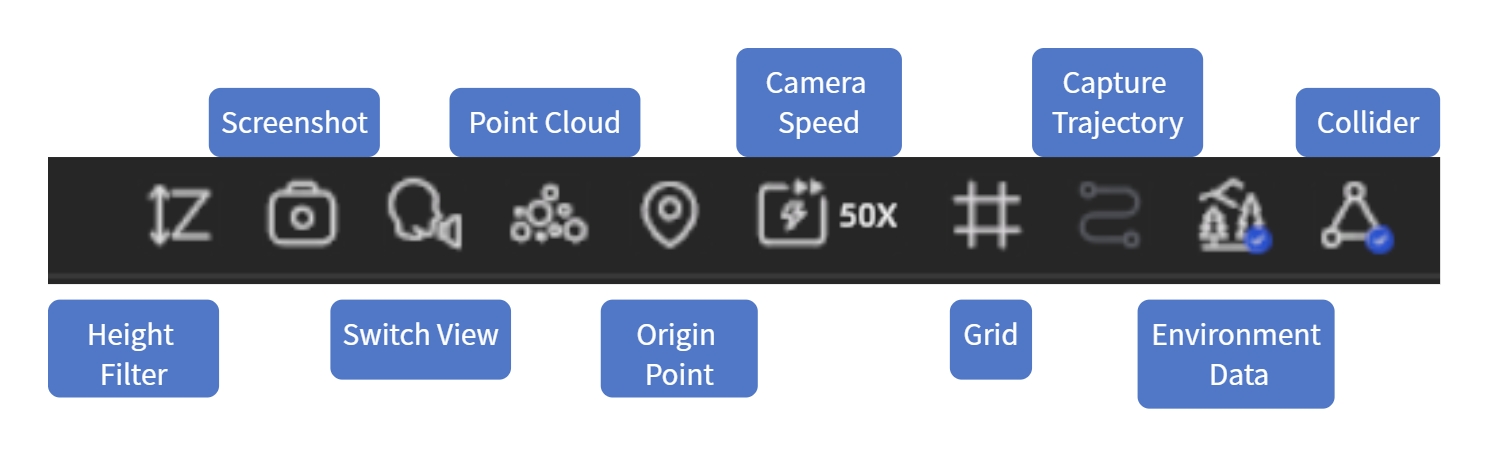
Global Toolbar

Global Toolbar

Undo / Redo

The toolbar provides Undo and Redo buttons:

  • Active state: Button is enabled; click to undo/redo
  • Grayed out: No actions available to undo/redo, or the current mode does not support undo

Shortcuts: Ctrl+Z (Undo), Ctrl+Y / Ctrl+Shift+Z (Redo)

Render Quality (V2.2 Update)

As of V2.2, render settings have been moved to the Settings panel → Rendering group, with Shadow, DLSS, and Rendering Mode (MIP/Non-MIP) added as configurable options. See Settings.

Collision

When enabled, navigating the scene simulates a realistic walking experience — walls, floors, and other objects block movement. When disabled, you can pass through all objects freely.

Environment Data

Show or hide the model's built-in ambient lighting information. When enabled, the scene displays more realistic lighting.

Note: Only one model's environment data can be active at a time. Enabling the skybox automatically disables environment data.

Capture Trajectory

Show or hide the scanning device's capture path, making it easy to see which areas were scanned.

Grid

Display a reference grid at the base of the model to help judge position and scale.

Camera Speed

Adjust how fast you move through the scene. Increase for large scenes; decrease for detailed inspection.

How to adjust:

  • Drag the speed slider in the toolbar (range: 1–100)
  • Shortcut: Ctrl + mouse wheel

Note: Speed settings are saved automatically and persist across all projects.

Spawn Point

The spawn point is the starting position each time you enter a scene. Click to instantly jump back to the spawn point.

As of V2.2, spawn point data is stored bound to the LCC file and travels with it. See Spawn Point.

Point Cloud Toggle

Switch the scene from normal rendering to point cloud display mode to inspect data distribution and scan density. Click again to return to normal rendering.

View Mode Toggle

Switch between scene navigation modes:

ModeBest ForControls
First-PersonImmersive browsing, simulating on-site walkingW A S D to move, mouse to look
PivotInspecting details around a focal pointLeft-drag to orbit, right-drag to pan, scroll to zoom
AvatarWalking through the scene as a virtual characterClick ground to move, auto-pathfinding

Screenshot

Capture the current view as an image for reports or sharing.

Steps:

  1. Click the screenshot button
  2. Select the aspect ratio
  3. Adjust the angle and click to capture
  4. The photo is automatically saved to the Media folder in the asset list; right-click to export

Height Filter

Hide scene content above or below a specified height range to isolate a single floor or area.

Steps:

  1. Click the height filter button
  2. Drag the top/bottom sliders to set the visible height range
  3. Click the button again to exit
Prev
Window
Next
Assets & Properties