
Measurement
The Measurement tool captures coordinates, distances, and area data from the scene, with real-time calculation, unit switching, and professional measurement display.
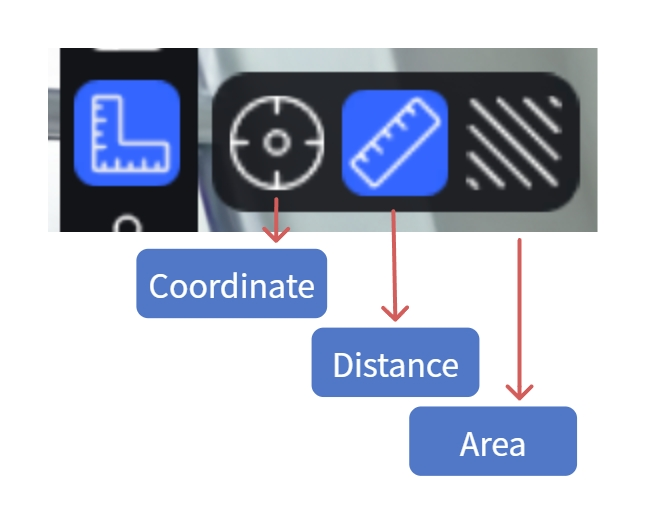
Measurement Tool
Workflow
1. Activate Measurement Mode
Click the Measurement button in the left toolbar to open the measurement tool.
2. Select Measurement Type
Coordinate Measurement:
- Click Coordinate
- Click a point on the model surface
- The spatial coordinates (X/Y/Z) of that point are displayed
Note: When the scene contains RTK positioning data, absolute coordinates are displayed.
Distance Measurement:
- Click Distance
- Click the first measurement point
- Click the second point — the distance between the two points is shown in real time
- Double-click to finish
- Right-click to cancel
Area Measurement:
- Click Area
- Click multiple measurement points in sequence (at least 3)
- Click the first point to close, or double-click to close
- Right-click to cancel
3. Delete a Measurement
- Hover over the measurement data and click the delete button
- Or select the entry in the asset list and press
Deleteor right-click → Delete
4. Text Annotation
Add a text note next to a measurement result. The note is included when exporting the measurement as a PDF.
- Hover over a measurement result number
- A "T" icon appears — click to enter input mode
- Type the annotation (≤50 characters)
5. Export Measurements
- Select measurement entries in the asset list (multi-select supported), right-click → Export, choose .csv or .pdf
- Measurements can also be included in a scene report for export
Assist Features
Axis Assist
Displays X/Y/Z axis guide lines during measurement. Points snap to axis directions for precise horizontal or vertical measurements.
- Shortcut:
Ctrlto toggle
Corner Detection
Automatically detects model surface edges and corners. A square marker appears when a corner is detected, making it easier to select edge positions precisely.
- Shortcut:
Tabto toggle
Unit Settings
Switch measurement units (metric / imperial) in Settings → General Settings. Enable "Professional Measurement" to also display X/Y/Z component values.