XGRIDSDocs
  • 简体中文
  • English
  • 繁體中文
  • 日本語
  • Deutsch
  • Español
  • Italiano
  • 简体中文
  • English
  • 繁體中文
  • 日本語
  • Deutsch
  • Español
  • Italiano
  • PortalCam

    • Product Overview
    • Basic Operation
    • Using the LCC Scan App
    • Maintenance and Care
    • FAQ
  • Lixel K Series

    • Lixel K1

      • Product Overview
      • Basic Operation
      • Device Activation and Connection
      • Scanning Workflow
      • Acquire Point Cloud Data with Absolute Coordinate
      • Map Fusion
      • Route Planning Suggestions for Typical Scenes
      • Precautions
      • FAQ
    • Lixel K2

      • Product Overview
      • Basic Operation
      • Device Activation and Connection
      • Scanning Workflow
      • Acquire Point Cloud Data with Absolute Coordinate
      • Map Fusion
      • Route Planning Suggestions for Typical Scenes
      • Precautions
      • FAQ
  • Lixel L Series

    • Lixel L2 Pro

      • Product Overview
      • Basic Operation
      • Device Activation and Connection
      • Scanning Workflow
      • Acquire Point Cloud Data with Absolute Coordinate
      • Measure Point
      • Appendix
      • FAQ
  • Lixel Studio

    • Version and Copyright
    • Installation and Activation
    • Software Interface
    • File Operations
    • Project Processing
    • Tools
    • 2D Drawing
    • Applications
    • Settings
    • Device Connection
    • FAQ
  • Lixel CyberColor

    • LCC Studio

      • Getting Started
      • Version and Updates
      • Download and Installation
      • Interface Overview and Navigation
      • Pre-Reconstruction Work
      • Model Reconstruction
      • Single Model Reconstruction
      • Map Fusion
      • Aerial-Ground Map Fusion
      • Aerial Reconstruction
      • My Models
      • Other Features
      • Settings and Account
      • Video Reconstruction
      • FAQ
    • LCC Scene Editor

      • Version & Updates
      • Account & Login
      • Product Overview & Home
      • Editor Interface
      • Scene Navigation Modes
      • File
      • Settings
      • Edit Operations
      • Window
      • Global Toolbar
      • Assets & Properties
      • Left Toolbar
      • Viewpoints
      • Portal
      • Skybox
      • Annotations
      • Measurement
      • Flythrough
      • Scene Report
      • 3D Layout
      • Preview Mode (Viewer)
      • Help
      • FAQ
      • Spawn Point
    • LCC Model Editor

      • Version and Updates
      • User Guide
      • Overview and Interface
      • File Operations
      • Selectors
      • Editing Models
      • Measurement
      • Color Grading
      • Asset Management
      • Settings and Help
      • FAQ
    • 04-capture-guide

      • Overview
      • Capture Devices Overview
      • General Capture Principles
      • Indoor Scene Capture
      • Outdoor Scene Capture
      • Large-Scale Capture (Map Fusion)
      • Aerial-Ground Map Fusion Capture
      • Object Capture
      • People Capture
      • Video Reconstruction Capture
      • HD Enhancement
      • Control Points (Lixel P1)
      • FAQ and Troubleshooting
    • Version History

Editor Interface

Panels can be freely dragged, docked, and floated. You can customize the layout to suit your workflow.
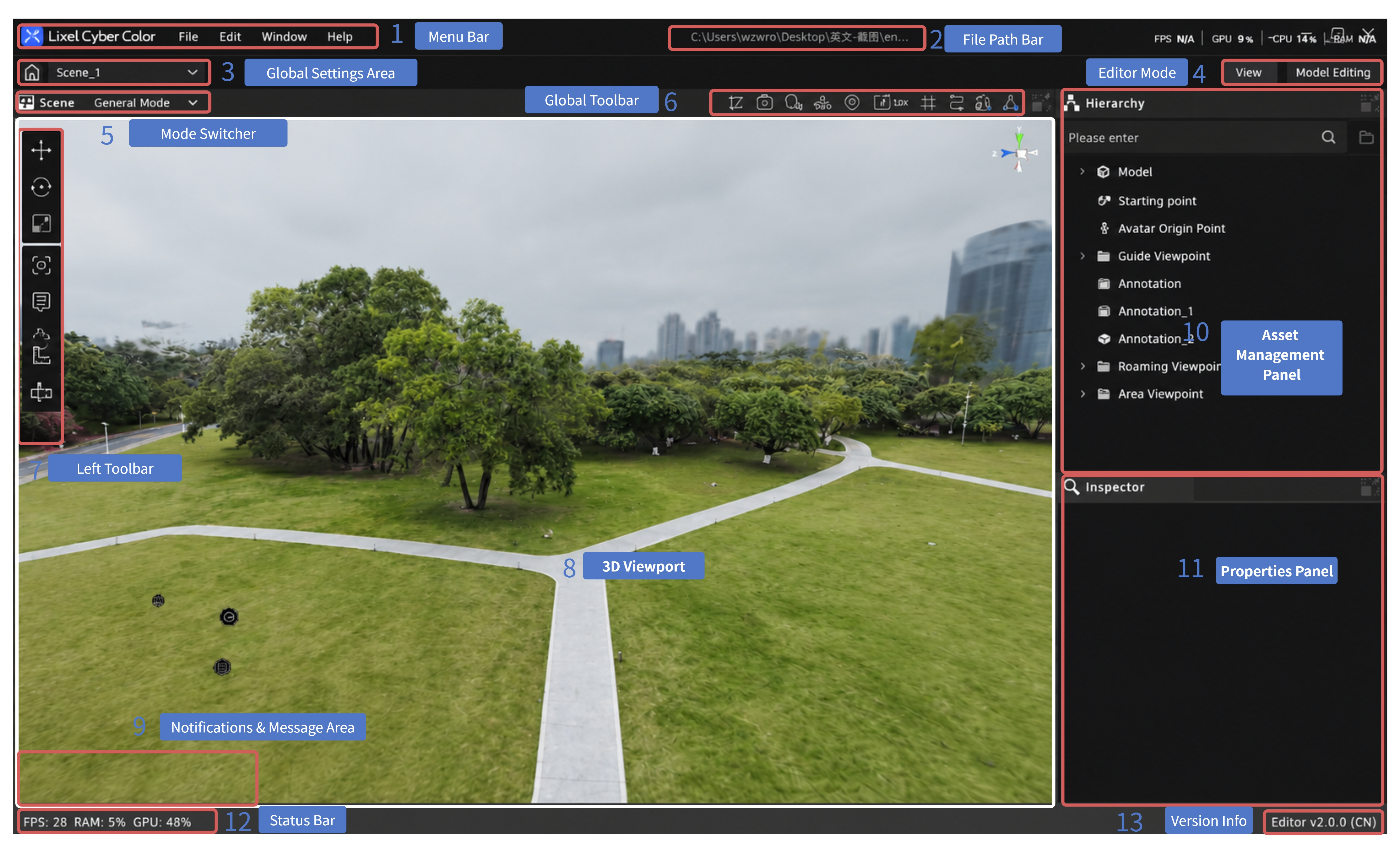
LCC Scene Editor Interface Layout

LCC Scene Editor Interface Layout

Default Layout:

  1. Menu Bar: File, Edit, Settings, Help
  2. File Path Bar: Displays / copies the current file path
  3. Global Settings Area: Return to home, switch between scenes
  4. Edit Mode Toggle: Switch between Edit and Preview modes
  5. Left Toolbar: Editing tools
  6. View Toolbar: Global shortcuts (including undo/redo and render quality quick access)
  7. 3D Viewport: Scene editing and preview area
  8. Asset Management Panel: Manage project assets (including multi-model spatial groups)
  9. Properties Panel: Edit parameters for the selected asset
  10. Status Bar: Version number, frame rate, memory usage, etc.
  11. Version Info: Version number and region

Menu Bar

Located at the top-left. Provides File, Edit, Settings, and Help menus.

File Path Bar

Displays the file path of the currently open project. Click to copy the path.

Global Settings Area

Located on the left side of the top toolbar. Provides scene-level shortcuts.

ActionDescription
Click home iconReturn to the home page (project list)
Scene dropdownSwitch between scenes in the current project

Edit Mode Toggle

Located in the top toolbar. Switches the current working mode.

ModeDescription
EditDefault mode. Perform annotations, viewpoints, measurements, and other editing operations
PreviewPreview the final result seen by end users after publishing

Left Toolbar

Provides editing tools including viewpoints, annotations, measurements, skybox, scene reports, and more.

3D Viewport

The main area for editing and previewing scenes. Supports free navigation, asset selection, and drag-and-drop placement.

Asset Management Panel

Lists all assets in the current project, including models, annotations, viewpoints, and measurements. Supports visibility control and selection-based navigation. Starting from V2.2, multi-model spatial group management is supported — toggle visibility of each model in the same panel.

Properties Panel

After selecting an asset, edit its detailed parameters here, such as name, position coordinates, and jump settings.

Status Bar

Located at the bottom. Displays current frame rate, memory usage, and other runtime status information.

Version Info

Displays the current software version number and region.

Prev
Product Overview & Home
Next
Scene Navigation Modes